

Docs / The workshop
Styles
Browse the built-in styles, try colours on a live preview, put a style on a preset, or paste one from the Fett263 library.
A style is what a blade does: its colour, its flicker, how it ignites and retracts, and how it reacts to clashes and swings. The Styles page is where you browse them, try them, and put them on your saber's presets. It sits in the Workshop, beside the Style editor, the Font library and the Demo room.
#What is on the page
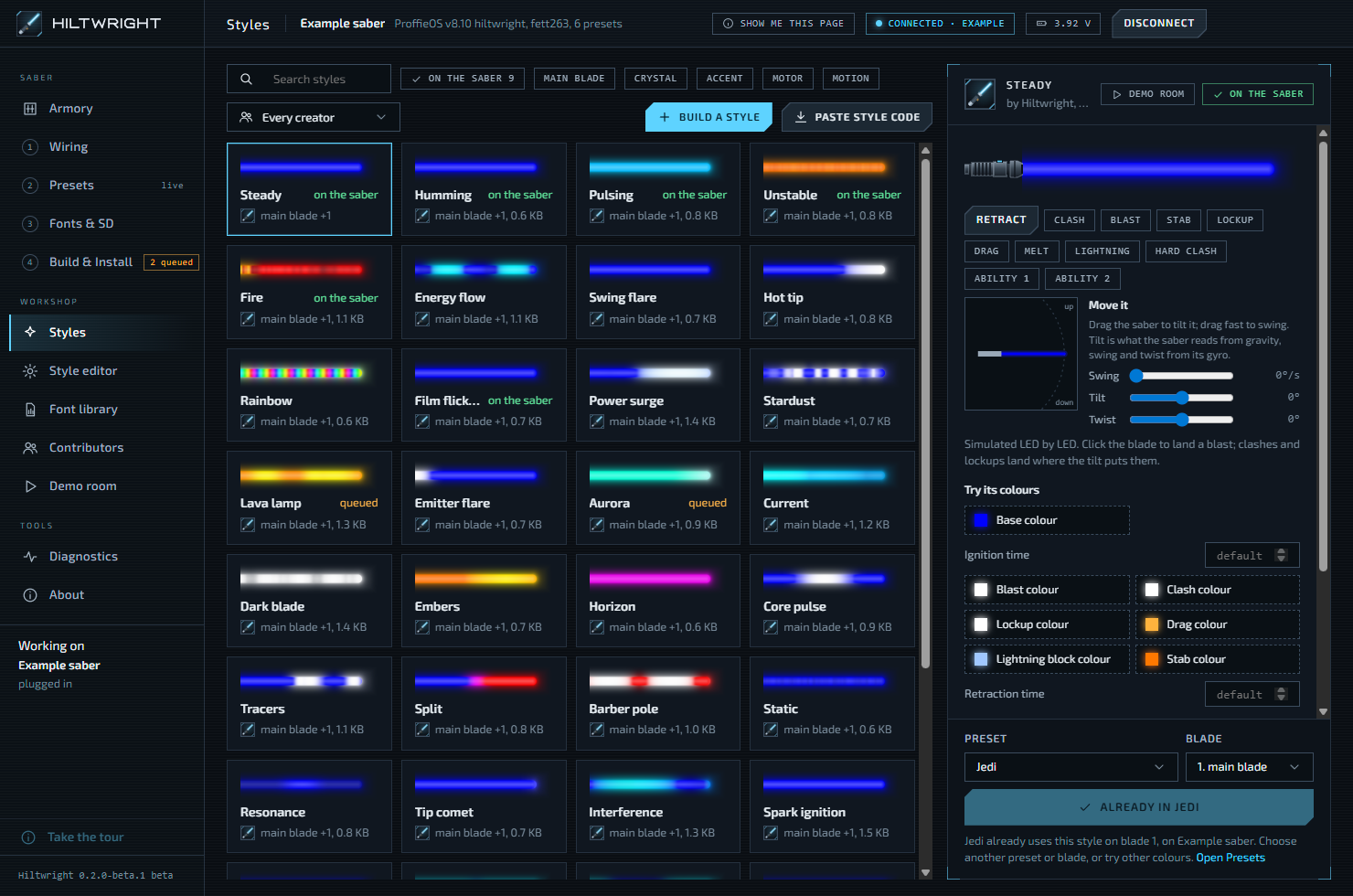
The grid holds every style you can use. Each card shows a small live blade, the style's name, who made it, and the kind of blade it suits (main blade, crystal, accent or motor).
Hiltwright ships 40 styles of its own. Thirty-two are for main and side blades, such as Steady, Humming, Fire, Energy flow, Swing flare, Aurora and Downhill. Seven are for a crystal chamber or an accent LED, such as Living crystal, Flash on hits, Battery gauge and Heartbeat. One, Motor on while ignited, is for a motor. Any style you paste or build appears in the same grid.
Above the grid you can narrow the list:
- Search styles matches the name or the author.
- On the saber shows only styles already in the saber's firmware.
- main blade, crystal, accent, motor show styles for that kind of blade.
- Motion shows styles that react to tilt, swing or twist.
- Every creator shows one maker's styles.
#On the saber, Queued, or Needs a build
Each style carries one of three marks. They matter because a saber can only switch between styles that are already inside its firmware.
| Mark | What it means |
|---|---|
| On the saber | The style is in the saber's firmware now. It can be switched on at once. |
| Queued | You chose it for a preset, but it is not in the firmware yet. It goes on with the next Build & Install. |
| Needs a build | It is not in the saber's firmware, so a build is needed before the saber can use it. |
A style you edited after the last install is not "On the saber" any more, because the firmware holds the older version.
When a style is queued, a Build & install queued styles button appears under the preview. It takes you to Build & Install.
#The preview
Pick a card and the panel on the right shows the style on a larger blade. It runs the same per-LED maths as the saber, so the colour, flicker and ignition match closely. The buttons under it let you try the style:
- Retract or Ignite.
- Clash, Blast, Stab and Hard clash.
- Lockup, Drag, Melt and Lightning, which stay on until you press them again.
- Ability 1 and Ability 2, for special abilities.
- Swing, Tilt and Twist sliders, or drag the little saber, to move the blade. Click the blade to land a blast where you click.
Nothing here is sent to a saber. Sound is a stand-in, so a style that follows the hum shows a typical flicker, not an exact one. To hear a style with a real sound font, press Demo room.
#When the preview is not the whole story
Some styles are pasted or built from ProffieOS parts the preview does not fully model. Hiltwright says so, in one of these ways:
- "The preview is only approximate for ..." followed by a list. Those parts may look a little different on the saber. Examples are clash strength, the sound level, colour variation and alternative fonts.
- "The preview cannot show ... yet, so they are left out of it. They are kept as written, but only a build shows whether the saber accepts them." Those parts are not drawn at all.
On a smaller card, the same warnings appear as a Preview approximate or Preview incomplete chip.
One known gap in the beta: on the built-in styles, drag and lightning block change with twist and blade angle on the saber, but not in the preview.
If a style's code cannot be read at all, the preview is a flat bar in its main colour. If the computer cannot do WebGL (the graphics part of the preview), you get the same flat bar with a short explanation.
#Try colours
Styles with changeable colours show a Try its colours panel: a swatch for each colour, and a number box for any timing the style reads. Change them and the preview follows. Back to defaults resets them.
These colours are only tried on the preview. They go with the style when you put it on a preset, and you can fine-tune them later on Presets.
#Put it on a preset
At the foot of the panel, choose a Preset and a Blade, then press the button. A blade marked "(unusual)" is one the style is not made for.
What happens depends on the saber:
- Plugged in, and the firmware already has the style. The button says Use it in the preset. It is written to the saber now, in the colours you chose. No rebuild. The page says "The saber confirmed it" when the saber has read it back.
- Not plugged in, or the style is new. The button says Add to the preset, or Also use it in the preset if the style is already queued elsewhere. The style is saved in the saber's plan and goes on with the next Build & Install. If you picked colours, they are written right after that install. A new style also costs a little firmware space, and the page shows about how much.
- Presets are staged. The style goes into the staged list and reaches the saber with the next install.
- Already in. The button says Already in the preset and is disabled. That preset already uses this style on that blade, with these colours. Choose another preset or blade, or try other colours.
The button is also disabled when the saber is plugged in but cannot take a write. If its SD card is out, the page says it has no readable card, because presets are saved on the card. If the card is shared with the computer, give it back on Fonts & SD first. It is disabled too while the board is busy with something else.
With no saber yet, the page says: "No saber yet: start one in the Armory, and styles can be put into its presets before it is ever plugged in."
#Paste style code
Paste style code takes a style written in ProffieOS code, usually from the Fett263 style library, but anything in the same form works.
- Copy the whole block from the library, comments included.
- Press Paste style code and paste it in.
- Type a Name, and who made it in By. If nobody knows, tick Author unknown. The Save style button stays disabled until you do one or the other.
- Press Save style.
Hiltwright checks the code as you paste. It stops you, with a message, if there is no code, if it does not start like a style such as StylePtr<...>(), if the angle brackets do not balance, or if it contains lines like #include or #define that do not belong in a single style. When the code passes, the page says "Looks like a style" and lists the colours and options you will be able to change live. It also says whether it found a header.
Note The comment header, with its copyright and author, stays with the style and goes into your saber's configuration. Hiltwright never redistributes the library itself.
A style you paste is credited to the person you name. You can fix the name later with Edit beside the credit, and add a logo or link for them. See Contributors.
#Your saved styles
Styles you paste or build are kept in your Styles. They can be removed. Built-in styles cannot.
- A built style shows Edit the layers, which opens it in the Style editor.
- Remove from library asks first. It names any saber that has the style installed or queued. Those sabers keep their own copy for the next build, so removing a style never breaks a saber.
Written for Hiltwright 0.2.0-beta.3. Something wrong or missing? Tell us.