

Docs / Getting started
Install guide
From the download to your first firmware install, including every Windows warning for unsigned software.
Hiltwright Beta 1 is not signed. Windows will warn you. This guide takes you from the download to your first firmware install.
#Before you start
You need:
- Windows 10 or 11, 64-bit. Windows in S mode is not supported. S mode can only run Microsoft Store apps. Microsoft says you can leave S mode for free, but you cannot go back.
- A Proffieboard V2.2 or V3.
- A USB data cable. Some cables only charge.
- About 2.5 GB of free disk space. The first-run setup downloads about 360 MB and uses about 1.9 GB.
- The installer is about 205 MB.
#1 Download
- Open https://github.com/safwyls/hiltwright/releases/tag/v0.2.0-beta.3
- Download
Hiltwright-0.2.0-beta.3-setup.exe.
#2 Windows warnings when you run the installer
The installer installs for your account only. It does not ask for administrator approval.
Browser. Edge and Chrome flag the download and ask whether to keep the file. Choose to keep it. The exact words differ between browsers and versions; look for Keep, sometimes under a … or arrow menu beside the download.
Unblock. Windows marks downloaded files. To clear the mark:
- Right-click the installer and choose Properties.
- On the General tab, tick Unblock.
- Choose OK.
If you do not see Unblock, the file is not marked. Go on.
SmartScreen. Double-click the installer. You may see "Windows protected your PC".
- Choose More info.
- Choose Run anyway.
If there is no Run anyway button, read the next section.
#3 Smart App Control
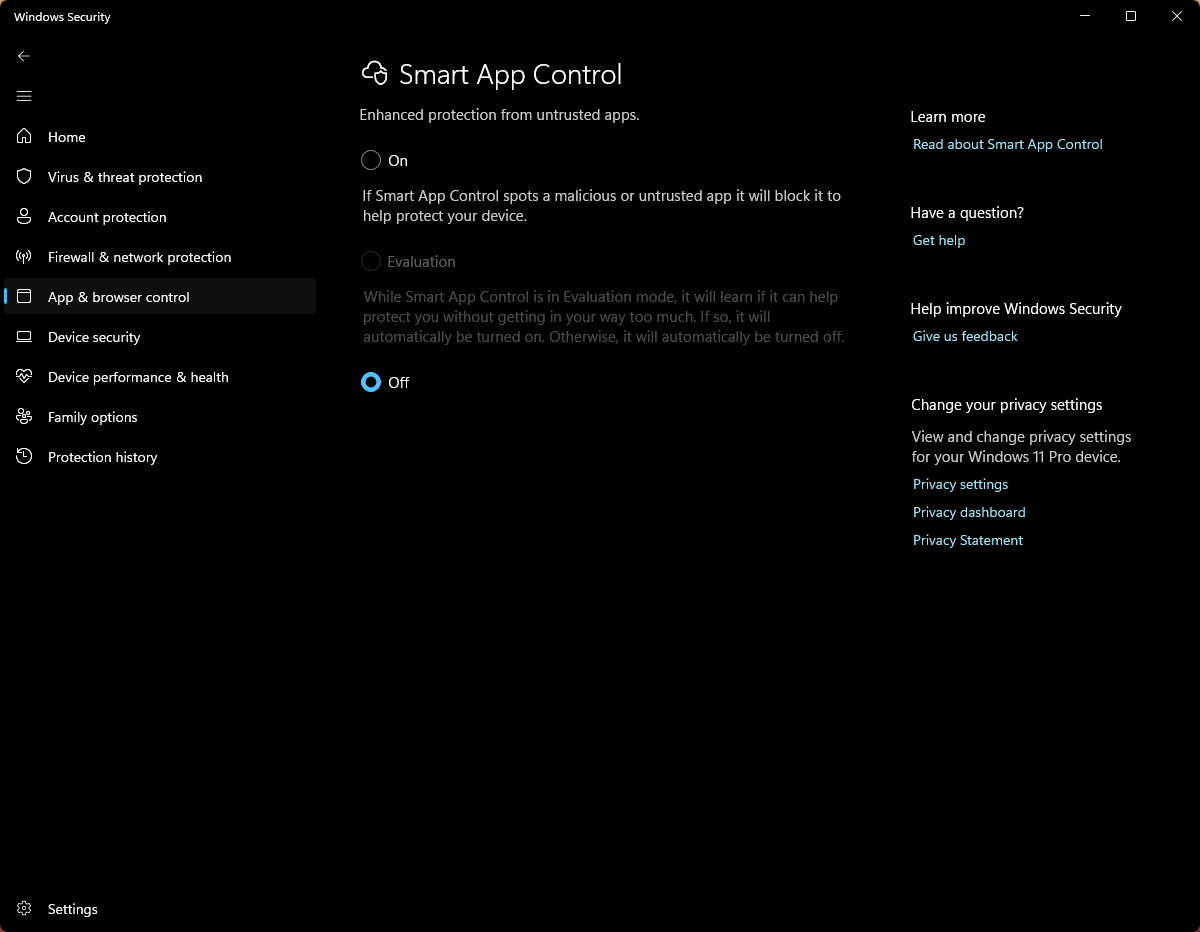
Check this before you download. Smart App Control is on some Windows 11 PCs. When it is On, it blocks the Hiltwright installer and the installed app, because this beta is not signed. There is no Run anyway choice, and Microsoft says there is no way to allow one app.
To check:
- Open Windows Security.
- Choose App & browser control.
- Choose Smart App Control settings.
- It says On, Evaluation or Off.
- Off: nothing to do. Carry on.
- Evaluation: it is only watching. It may switch itself to On or Off later.
- On: the installer is blocked, and so is the app itself. Windows says: "We blocked … because we could not verify its publisher to confirm it was safe to run. This app has been blocked to help protect your device and data."
If yours is On, you have two choices:
- Use another PC for this beta.
- Turn Smart App Control off: on the same screen, choose Off. This lowers the protection of your PC for every app, not only Hiltwright. On current Windows 11 you can choose On again later; on older versions you cannot turn it back on without resetting Windows, so check that On can still be chosen on your PC, and read Microsoft's page first: https://support.microsoft.com/topic/what-is-smart-app-control-285ea03d-fa88-4d56-882e-6698afdb7003
Turning it off only for the install is not enough. The installed app is unsigned too, and with Smart App Control turned back on, Windows blocks Hiltwright when you open it (tested on the developer's PC). Smart App Control has to stay off for as long as you use this beta.
This is because the beta is not signed. A signed build would not be blocked; there is none yet.
#4 First run: the one-time setup download
- Open Hiltwright.
- Go to the Build page and find Compiler. It says "one-time download".
- Choose Download and install.
- Wait. Setup downloads about 360 MB. It checks each file before it uses it.
- When it says ProffieOS is ready, setup is done.
Setup gets arduino-cli and the ProffieOS source from GitHub. It gets the Proffieboard board support, with the compiler and dfu-util, from the ProffieOS author's package index.
Setup installs to C:\ProgramData\Hiltwright. If that folder is not available, it uses a short folder in your own profile. Only administrators and your account can change the folder.
If setup says there is not enough space, free some space and choose Try again.
On a fast connection, setup takes about a minute.
#5 The one Windows approval to expect
Your first install needs a one-time bootloader driver. Windows asks for administrator approval once.
- Plug in your saber with the USB data cable.
- Put the board in bootloader mode if Hiltwright asks. Hold BOOT, tap RESET, then release BOOT.
- During the install, the Build page stops at "Windows needs a driver". Choose Install the driver.
- Hiltwright downloads a 3 MB installer from the ProffieOS author, checks it, and starts it.
- Choose Yes when Windows asks for approval.
- Leave the saber plugged in. The install carries on by itself.
If you choose No, the driver is not installed and you cannot flash.
#6 If antivirus flags something
Unsigned files are sometimes flagged by mistake. If Defender or another antivirus blocks or removes a file:
- Do not turn your antivirus off.
- Note the file name and the warning.
- Tell us (section 8).
- You can submit the file to Microsoft at https://www.microsoft.com/wdsi/filesubmission. Say it is a false positive.
#7 Newer betas
Coming from 0.2.0-beta.1 or 0.2.0-beta.2? Neither can update itself. Install this beta by hand, once: download the installer and run it, as in sections 1 and 2. It installs over the old one. Your sabers, styles, fonts and backups are kept.
From 0.2.0-beta.3 on, Hiltwright looks for newer versions itself:
- A little after it starts, and every few hours while it is open, it asks GitHub for Hiltwright's list of releases. It sends nothing about your sabers or you; GitHub sees your internet address, as with any web page.
- When a newer version is out, a small chip under the version in the sidebar says "Version ... is available". Nothing is downloaded yet.
- On the About page, press Download version .... You can keep working while it downloads.
- Press Restart to update. Hiltwright closes, the installer runs, and Hiltwright opens again. Hiltwright will not restart while a build, a firmware install, a Put back, a copy to the card or card sharing is running; it says what to wait for.
- To stop the checks, turn off Check for updates when Hiltwright starts on the About page. Check now still works.
The browser warning and the Unblock step in section 2 are only for installers you download in a browser; an update Hiltwright downloads itself does not carry the mark. Smart App Control still has to stay off (section 3).
#8 Where to report a problem
- In Hiltwright, press Save diagnostics. It saves a file on your PC. It does not send anything.
- Open https://github.com/safwyls/hiltwright/issues
- Describe what happened and which step you were on.
- Attach the diagnostics file.
Source for this build: https://github.com/safwyls/hiltwright/tree/v0.2.0-beta.3
Written for Hiltwright 0.2.0-beta.3. Something wrong or missing? Tell us.