

Docs / The saber path
Fonts & SD
Get the sound fonts your presets use onto the saber's SD card, and check the card and its fonts.
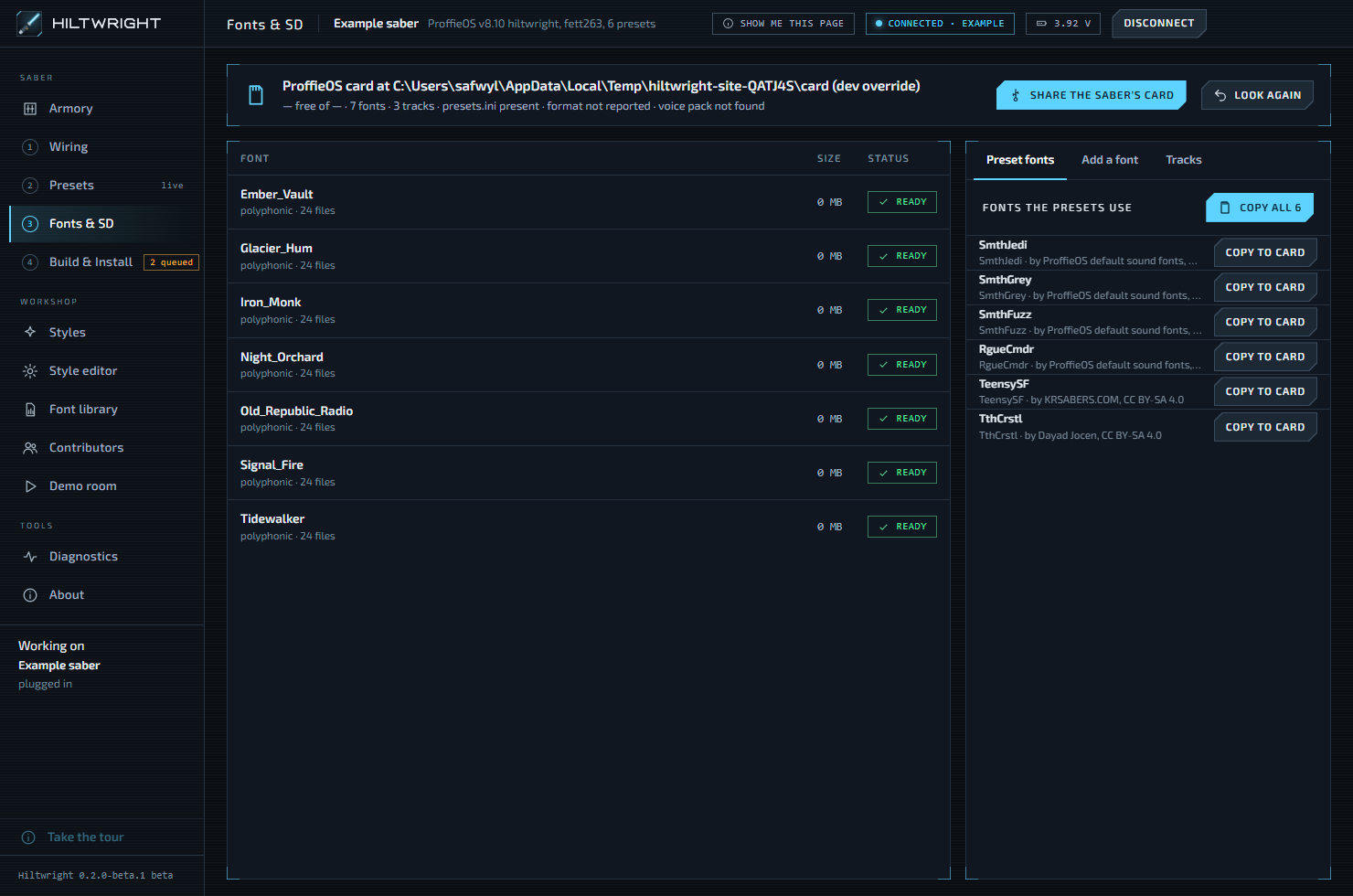
Step 3 is Fonts & SD. Sound fonts live on the saber's SD card. This page checks the card, lists its fonts and copies fonts onto it.
#Two ways to reach the card
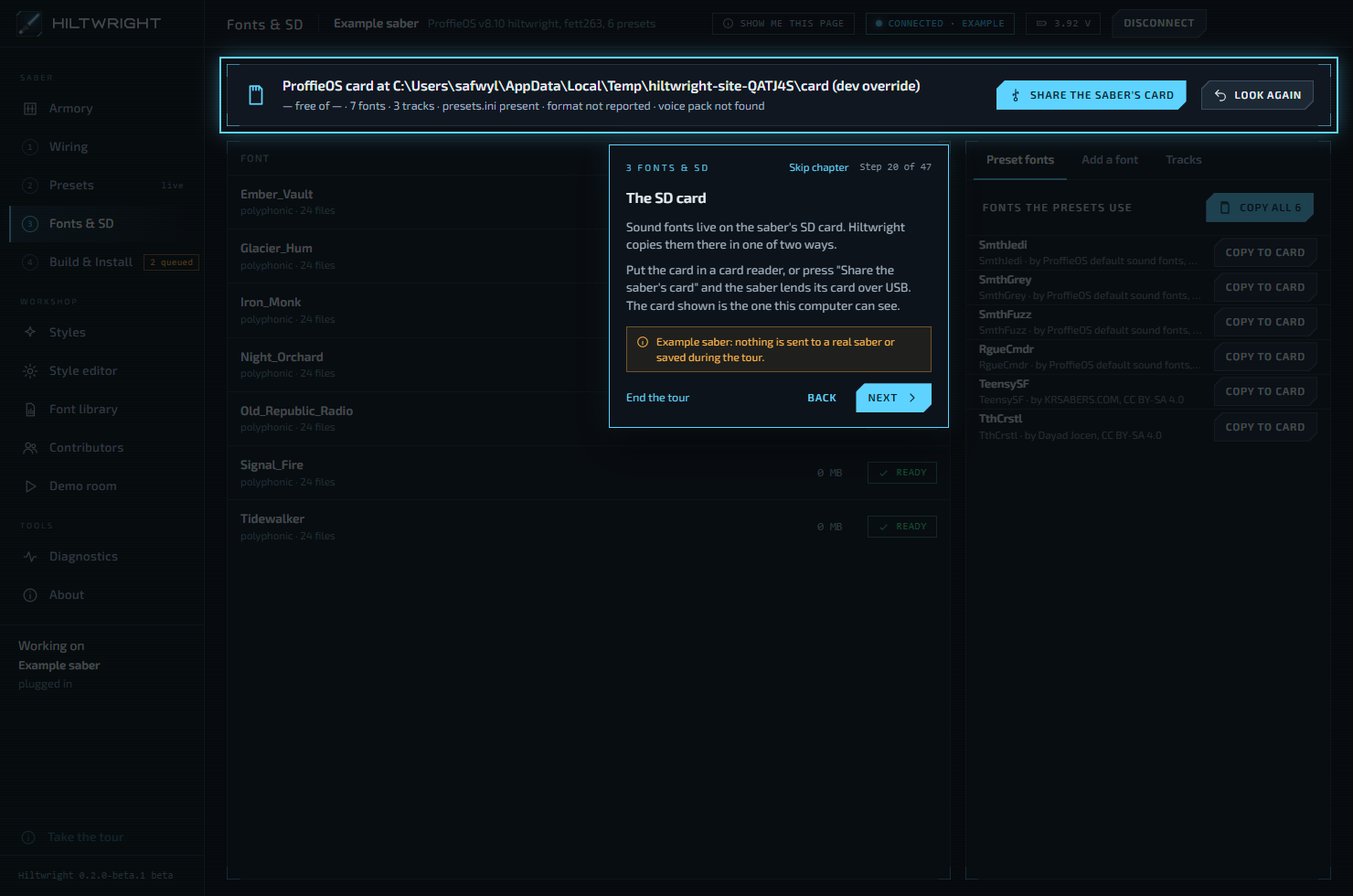
Card reader. Put the card in a card reader. Hiltwright finds it. Copying through a reader is faster than over the saber's USB link.
Share the saber's card. With the saber plugged in, press Share the saber's card. The saber lets go of its card, and Windows shows it as a drive. The blade goes off and sound stops until you give the card back.
#What sharing looks like
- "Asking the saber…" The saber lets go of its card once any sound has stopped. This can take several seconds.
- "Waiting for the drive…" Windows opens the card as a drive. On a large card this can take a minute or two. Hiltwright keeps looking for up to 3 min and shows the time so far. On the checked V3 the drive appeared after 9 s.
- The card appears with a heading such as "ProffieOS card at E: (label): (saber)'s own card".
Cancel stops waiting and gives the card back. If the 3 minutes pass, the card stays shared and nothing is taken back for you. Press Look again if a drive window opened since. Otherwise press Keep waiting or Give the card back.
While the card is shared:
- The saber cannot play.
- Preset changes and installs are blocked. Presets and Build & Install tell you to give the card back first.
- Copying is slow. A big font can take minutes.
Press Give the card back here. Do not unplug the saber, so nothing is left half written.
Warning If Windows will not let go of the drive, giving the card back can be refused. This happened when File Explorer had the card open. Close any File Explorer windows showing the card, then press Give the card back again.
If Hiltwright cannot tell which drive is the saber's card, it asks you to use Safely Remove in Windows for it, then press Give the card back again. If the connection drops while the card is shared, reconnect the saber to give the card back.
#The card status line
The line under the heading shows free and total space, the number of fonts and tracks, whether presets.ini is present, the card's format and the voice pack. If several cards are seen, a Card list lets you choose. Nothing is copied until you do. Look again reads the card once more.
Headings tell you what Hiltwright found:
| Heading | Meaning |
|---|---|
| ProffieOS card | Fonts or presets.ini found. |
| Empty card | Nothing on it. Copy the fonts your presets use to start a saber card. |
| Not a saber card | Other files, no fonts or presets.ini. Copying adds a folder and changes nothing else. |
| No ProffieOS card found | Put the card in a reader, or share the saber's. |
#The card format
A saber reads only FAT32 cards. If the card is formatted exFAT or NTFS, a red note says "A saber cannot read this card." The saber will find no fonts or presets on it. Back up what you need, then format it as FAT32. Windows' own format only offers FAT32 for cards up to 32 GB. A larger card needs a FAT32 formatting tool. Formatting erases everything.
Copying to such a card asks first: "Copy (font) to (drive) anyway? The card is (format), so a saber will not see it until the card is formatted as FAT32." Hiltwright has no card formatter in this beta.
#Fonts on the card
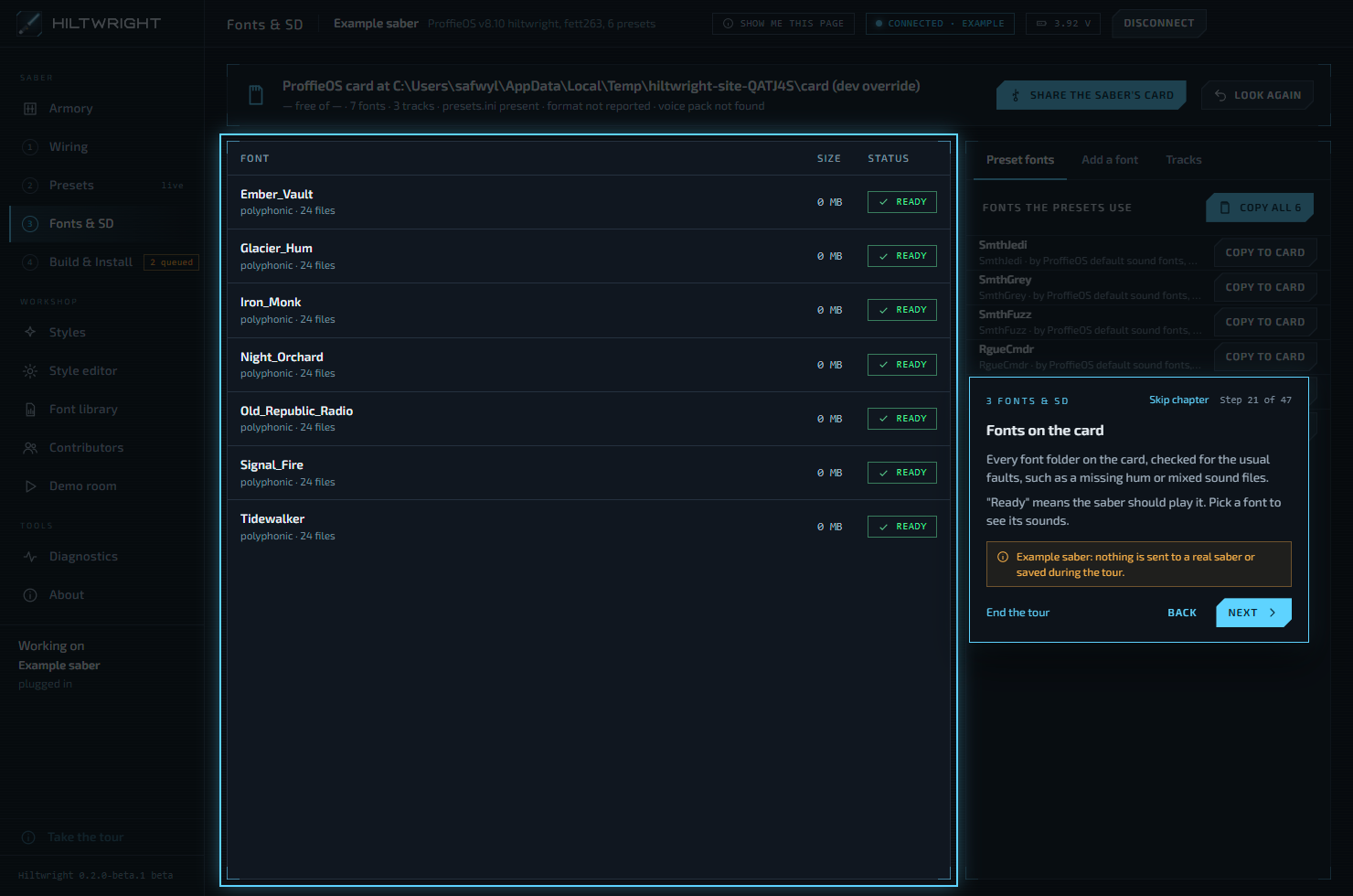
The table lists every font folder on the card, with its type and file count, its size and a verdict.
- Ready means the saber should play it.
- A chip such as "2 issues" means a check found a fault. It is red for the serious ones, a missing hum or mixed sound files, and amber for the rest. The notes underneath say what and which font.
Pick a font to see its sounds, grouped by effect, with how many are polyphonic or monophonic. With none picked, the panel shows the card's tracks.
#Fonts the presets use
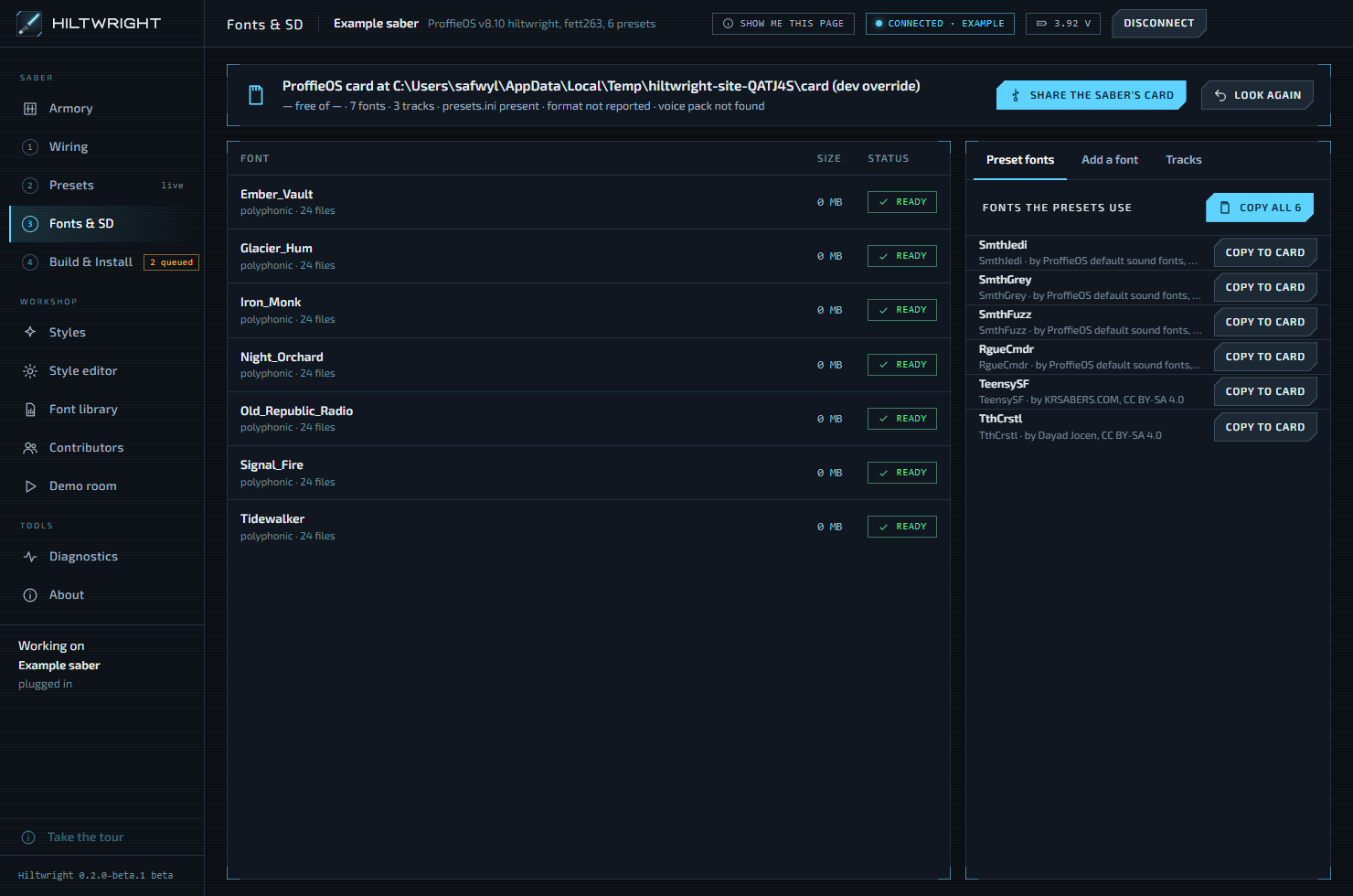
The Preset fonts tab lists the font each preset names and where it is:
- "On the card": nothing to do.
- Copy from library: it is in your font library. One click copies it.
- Copy to card: it is one of the six free fonts that come with Hiltwright.
- "Missing": not on the card, not in the library, not in a pack. Add it to the library and copy it, or choose another font on Presets.
- With no card seen, you see "In library", "Ready to copy" or "Card not checked".
Copy all copies every font that can be copied. The six free ProffieOS fonts are TeensySF, SmthJedi, SmthGrey, SmthFuzz, RgueCmdr and TthCrstl. Each shows its credit and licence, CC BY-SA 4.0. A copy is identical to the original folder.
Progress shows as "Copying (font): 3 of 40 files". Afterwards: "Copied (fonts) to the card." If one fails, the note lists what was not copied and why.
#Add a font from this computer
On the Add a font tab, press Choose folder. Hiltwright checks the files and shows the type, file count, size and any issues before anything is copied. Your original is never changed. Press Copy to card.
If a font of that name is already on the card, Replace on card is offered, and asks again: "Really replace (font)?".
#Tracks and the voice pack
Tracks are the music files in the card's tracks folder. Name one in a preset's Track field.
The status line reports the voice pack, for example "voice pack version 2" or "not found". Presets that use the Fett263 prop need the voice pack in the common folder. Hiltwright does not put the common folder or the voice pack on the card for you yet. Build & Install warns if it is missing, and Presets has the "Also use common sounds" switch.
Next: Build & Install.
Written for Hiltwright 0.2.0-beta.3. Something wrong or missing? Tell us.