

Docs / The saber path
Presets
Edit the saber's presets (font, track, style and colours), save sets of them, and undo changes from History.
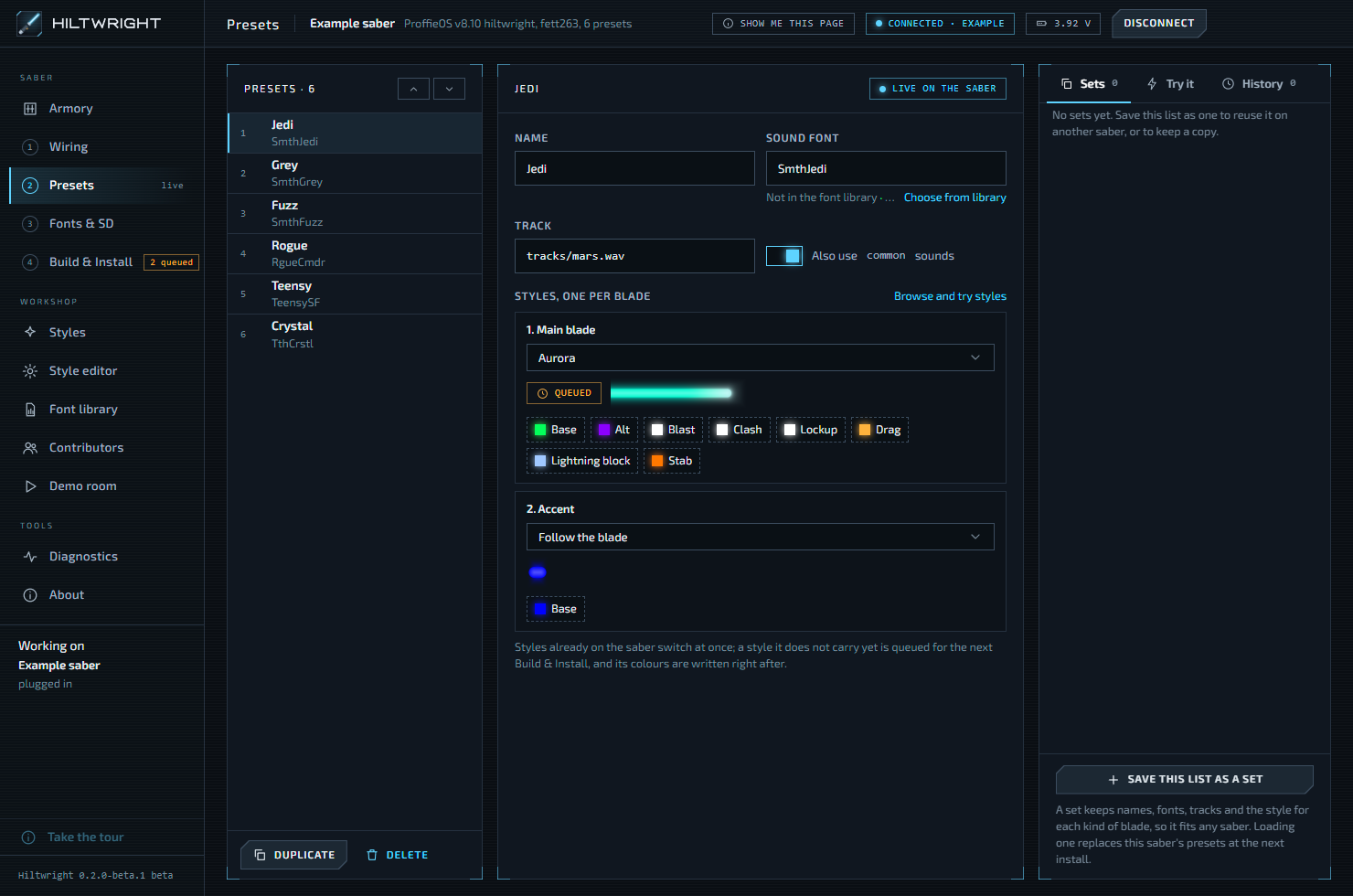
Step 2 is Presets. A preset is one setup you switch to with the buttons: a sound font, a music track and a style for each blade. This page edits the saber's list of presets.
#The preset list
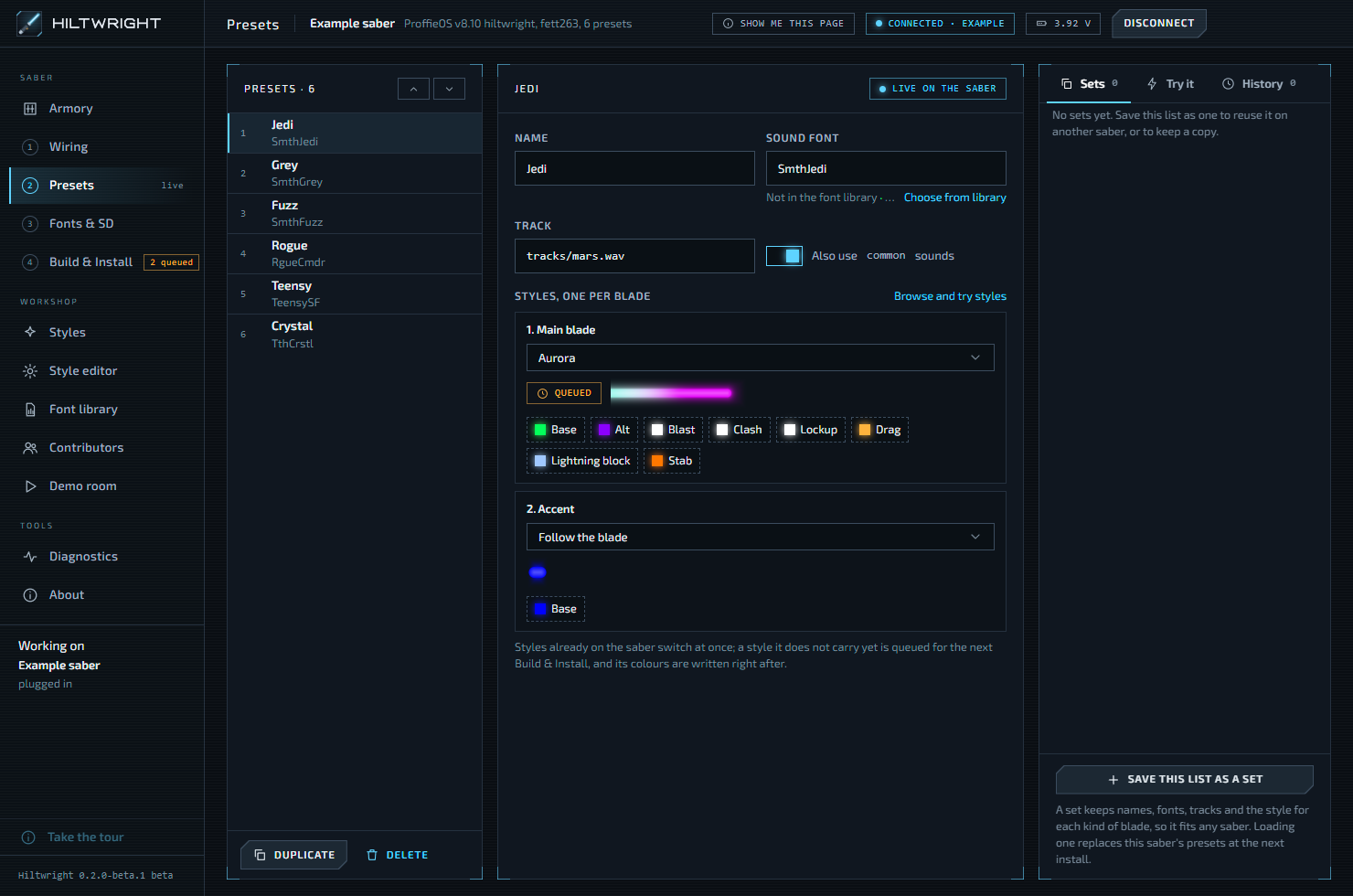
Pick a preset in the list on the left to change it. The arrows move it up or down the list. Duplicate copies the current preset (a staged copy gets "copy" added to the name). Delete asks again with Really delete, and is off when only one preset is left. With an empty list the button reads Add.
#Live or staged
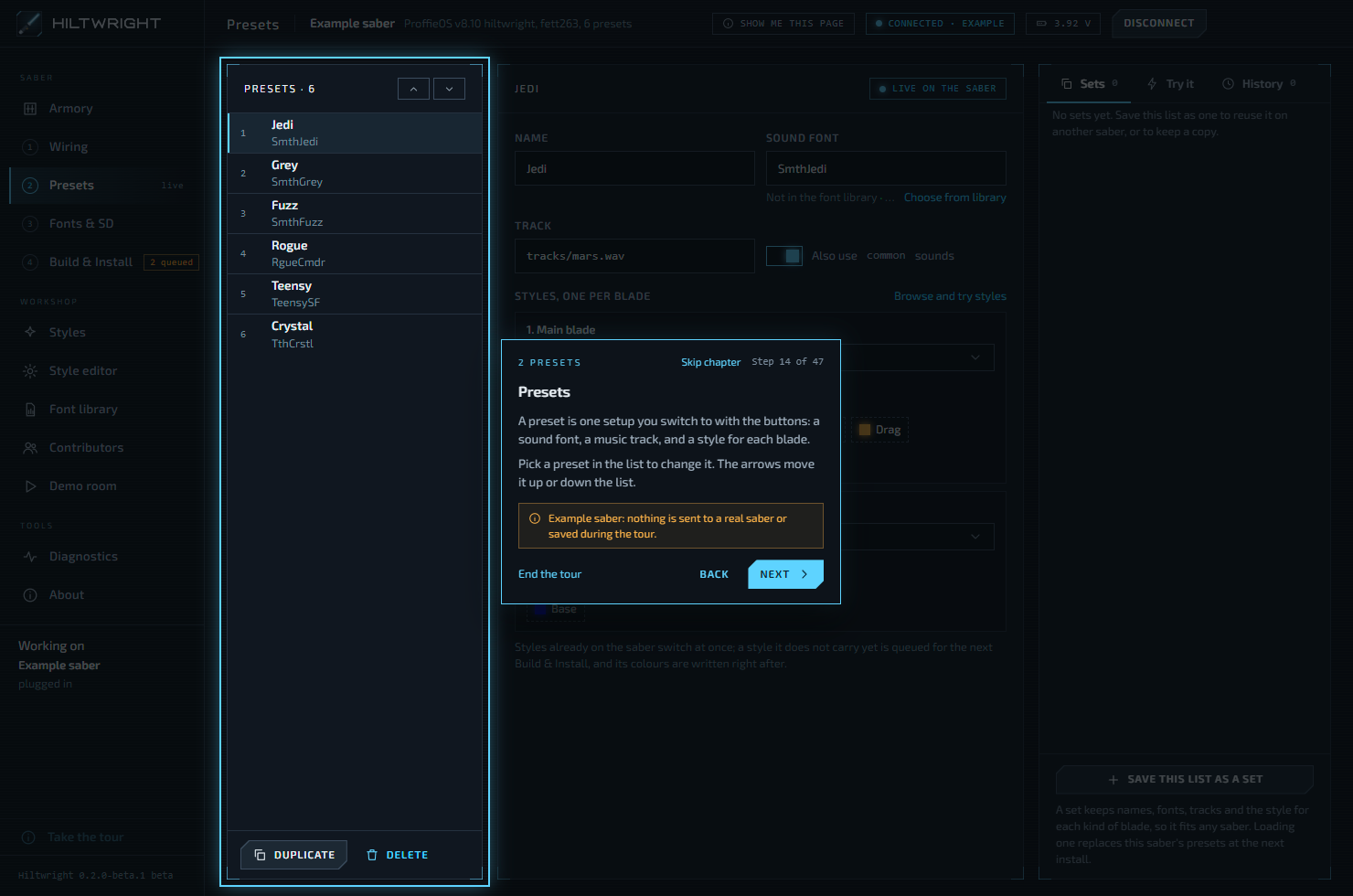
A chip above the editor says how your changes are applied.
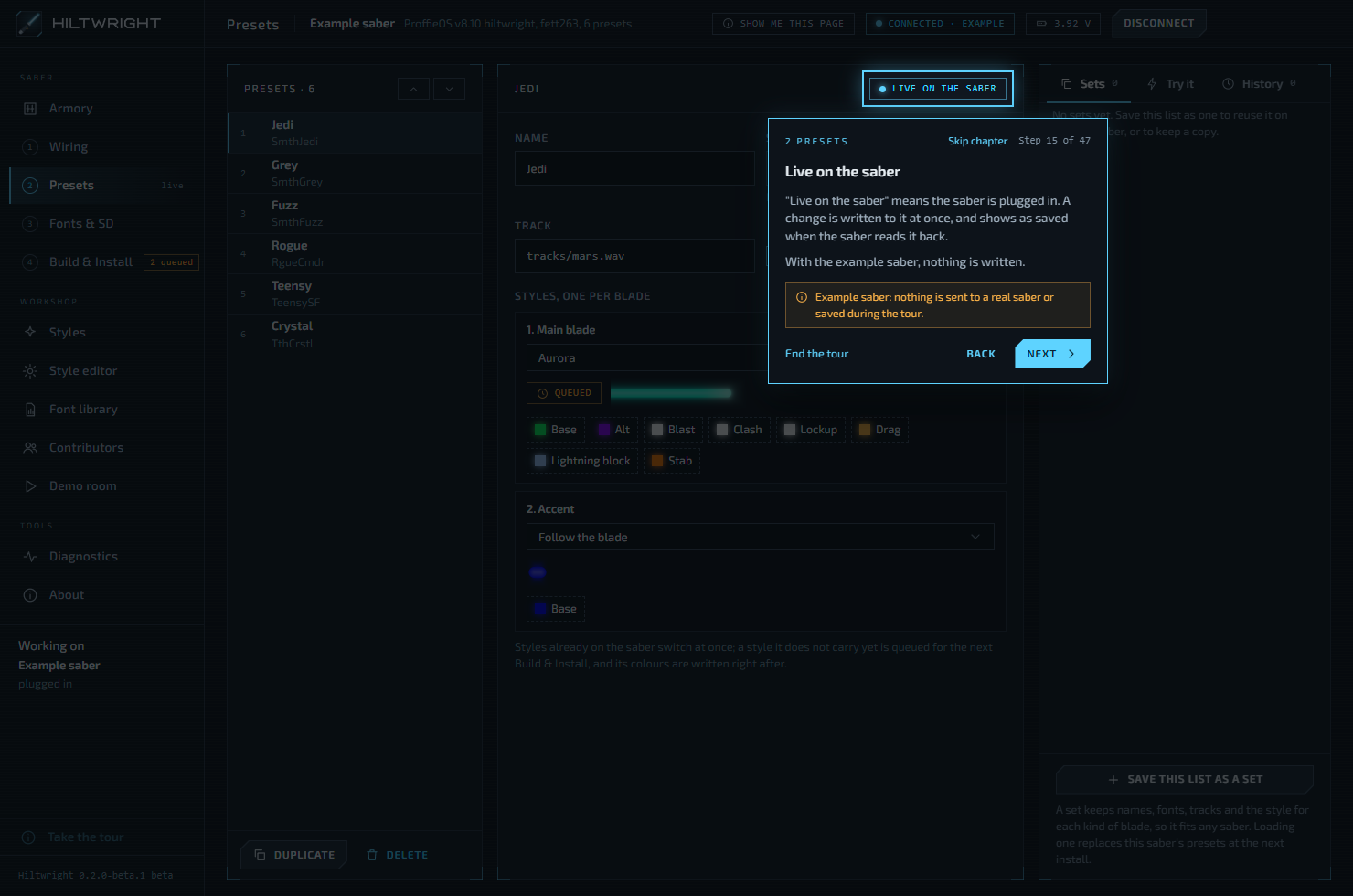
Live on the saber. The saber is plugged in, so each change is written to it at once. The chip shows "Writing" and what is being written, then "Saved" when the saber reads the change back. The preset the saber has selected is the one you are editing. If a write fails, the chip says what failed and the page shows what the saber reports.
Staged for install. With no saber plugged in, changes are staged instead. They wait in Hiltwright and replace the saber's presets at the next Build & Install. A snapshot of the saber's own presets is kept first, so they can be put back. A banner says "These presets are staged" and, with the saber plugged in, offers Discard them and show the saber's own.
If the saber is not plugged in, the chip says "Not plugged in" and a note says "These are its presets as last read; changes are staged and go on with the next install."
Note Presets are saved on the saber's SD card. If the saber cannot read its card, the page is read-only with a red note, "has no readable SD card". Put the card back and reconnect. While the card is shared with your computer, the chip says "Card shared" and nothing is sent. Give it back on Fonts & SD first.
#Name, font and track
- Name is the preset's name.
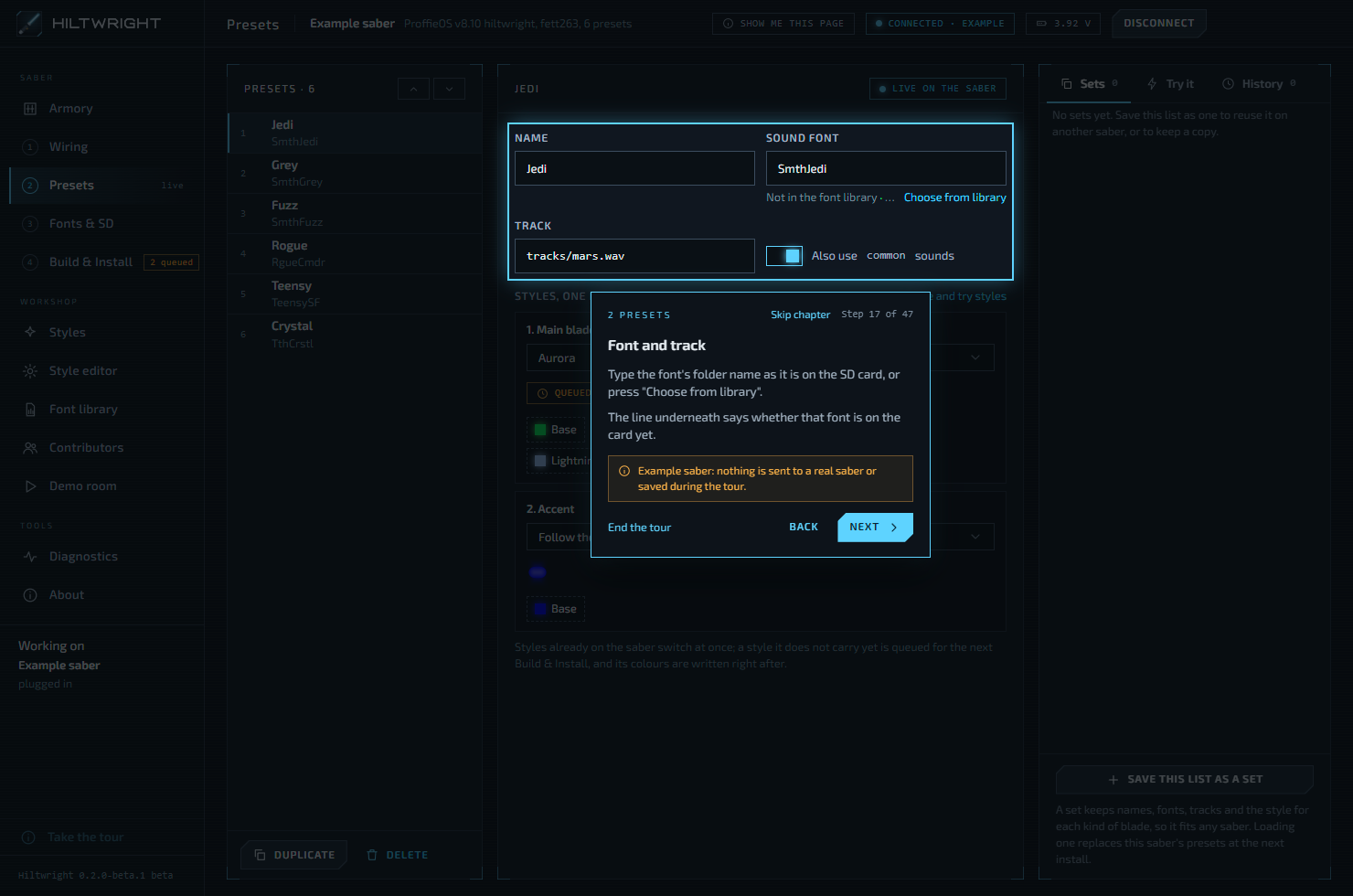
- Sound font is the font's folder name as it is on the SD card. Type it, or press Choose from library to pick one from your font library, with a quick listen. The line underneath says whether the font is in the library, and shows "on the card" or "not on the card". If it is missing from the card but in your library, press "copy it over" to go to Fonts & SD.
- Track is the music file, for example
tracks/name.wav, or leave it blank for none. - Also use common sounds adds the
commonfolder after the font. Presets using Fett263 buttons need it for the voice pack. If a preset names other folders too, they are listed as "Also uses" and kept as they are.
A field is saved when you leave it or press Enter, not on every key, because a live edit is a write to the saber.
#A style for each blade
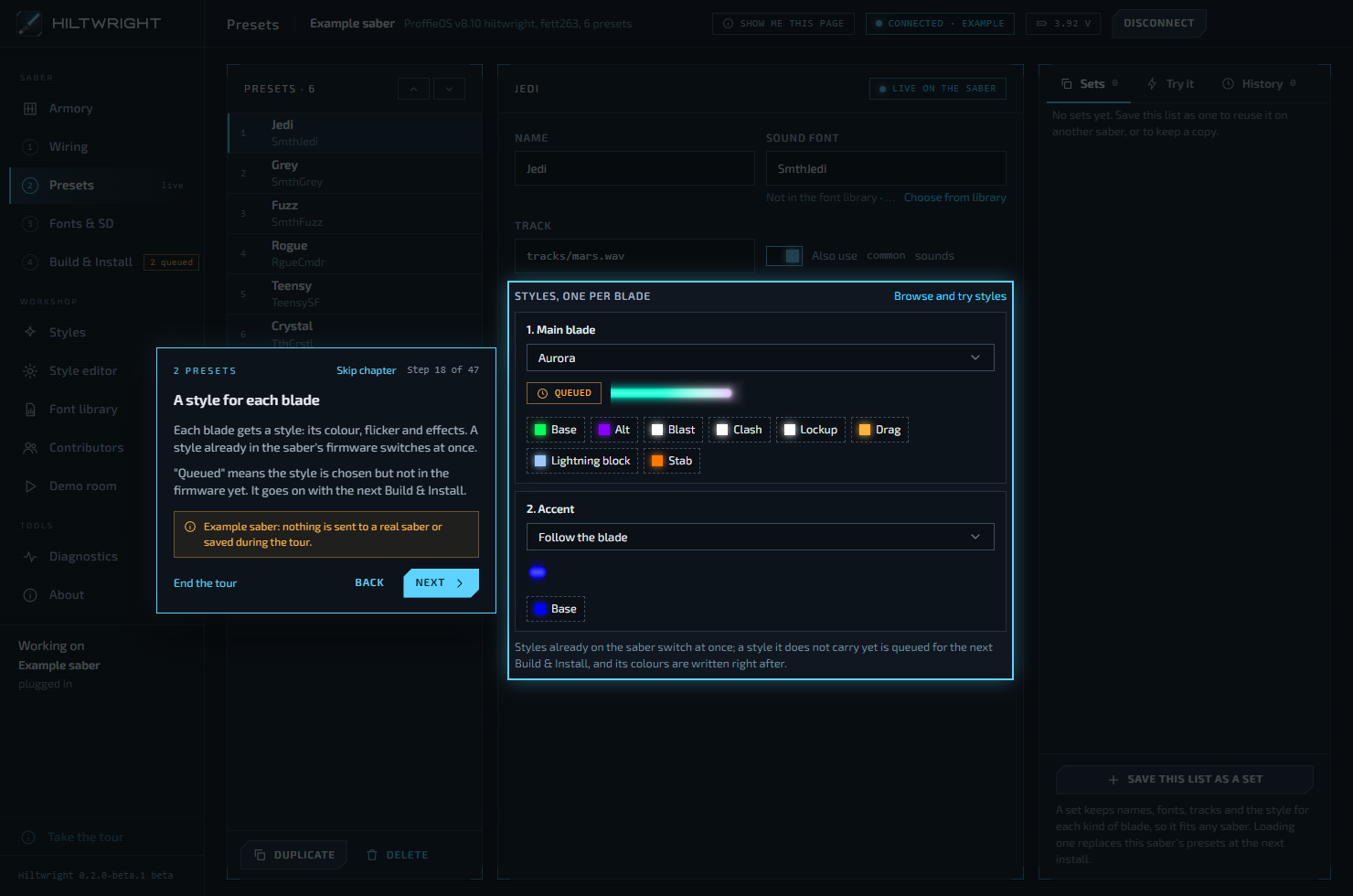
Each blade gets a style: its colour, flicker and effects. Choose it from the list for that blade. The list offers styles made for that kind of blade, in groups: "Hiltwright", "Your styles", and "Only on this saber (removed from your styles)" for styles the saber's plan still carries after you deleted them.
- A style already in the saber's firmware switches at once.
- Queued means the style is chosen but is not in the firmware yet. It goes on with the next Build & Install. In the list, such a style is marked "(needs a build)". A note says: "is not on (saber) yet: it goes on with the next Build & Install."
- With staged presets, a blade with no choice shows "Saber's default" and uses a starter style for that kind of blade.
Colour swatches under a style let you change its colours. A colour is written once the picker has been still for half a second, or when you leave it. Style's own colours puts the style's defaults back. Browse and try styles opens Styles.
#Preset sets
A set is a saved copy of a whole preset list. It keeps names, fonts, tracks and the style for each kind of blade, so it fits another saber. Press Save this list as a set to keep one. Load puts a set on this saber, replacing its presets at the next install. A bin icon deletes a set.
Before a load, Hiltwright shows what it would do:
- "This set does not fit (saber) exactly:" lists each problem, such as a style that is not in your styles any more (that preset gets the saber's default style for the blade), a style for a blade this saber does not have (it is left out), or a preset with no name or font. The button then reads Load it anyway.
- "This set cannot be loaded:" appears when the set has no presets.
- If staged presets would be replaced, it says so: "Loading it replaces the N presets staged here".
A clean set loads at once. Afterwards the page says it is "staged for the next install".
#History
With a saber plugged in, the History tab lists snapshots. A snapshot of the saber's presets is kept before every change written to it. The newest entry says Undo. Older ones say Restore.
Pressing it shows what a restore would change before anything is sent. You may be offered:
- Restore this preset, which changes only the one preset that differs.
- Restore the whole list, with a numbered list of each change.
If the saber already matches the snapshot, it says "Nothing to restore." If it cannot tell which preset is which, it offers only the whole list. Press Cancel to change nothing. A restore sends the earlier values back and waits for the saber to confirm them.
The Try it tab, shown only while plugged in, has controls for trying the saber, the same ones as on the Diagnostics page.
Next: Fonts & SD.
Written for Hiltwright 0.2.0-beta.3. Something wrong or missing? Tell us.