
Docs / The workshop
Demo room
Try any style with any sound font on a saber in a dark room, before anything goes near a real saber.
The Demo room is a dark room with a saber in it. You pick a style and a sound font, ignite the saber, swing it, clash it and hold lockups. It is the place to decide whether a style and a font belong together, without installing anything.
#Choosing a style and a font
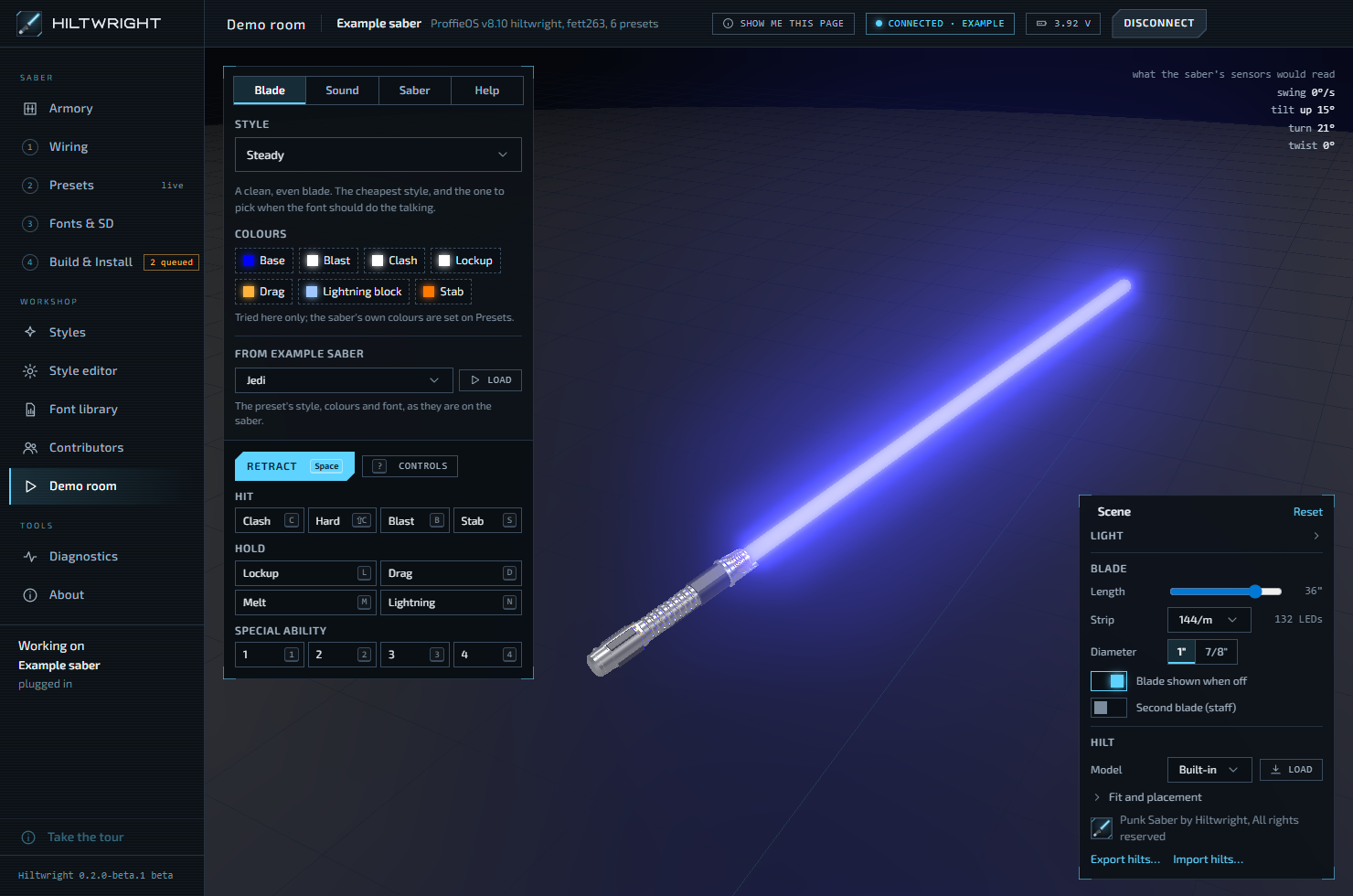
The panel on the left has four tabs: Blade, Sound, Saber and Help.
Blade holds the style. Pick one from Hiltwright, which are the built-in styles, or from Your styles, which are the ones you built or pasted. A short description sits under the name, with any preview warning. The Colours swatches change the style's colours for this session only: "Tried here only; the saber's own colours are set on Presets."
Sound holds the font. Fonts from lists where fonts can come from:
- Font library, with the number of fonts in it. See Font library.
- Hiltwright fonts, the free fonts that come with the app, when they are set to allow playback.
Fonts on an SD card are not a source here. Reading a whole card froze the room for a long time, so the room uses the library instead. If you have no fonts yet, the tab says "No fonts to hand. Add a font folder to the Font library to hear it here." The Add a font folder link starts the add.
Pick a font and Hiltwright reads and decodes its sounds. When it is ready, the room shows whether the font has SmoothSwing, plain swing sounds, or no swing sounds. A Volume slider sits below. If a very large font is trimmed, a note says how many files were left out to stay under the memory cap.
#From your saber
When you have a saber in the Armory with presets, the Blade tab shows a section headed From and the saber's name, with a preset picker and Load. It sets the style, its colours and the font from that preset, as they are on the saber. On a staff hilt it loads the second blade too.
If it cannot, it says why. For example, "Hiltwright cannot tell which style ... runs on blade ...", or that the style cannot be shown in the room yet. The blade keeps what it showed before. If the preset's font is not in the library, the note says so: "The font ... is not in the Font library. Add it there to hear it here."
#Controls
Press ? or the Controls button for the full list. They are ignored while you type in a box.
| Action | Mouse | Key |
|---|---|---|
| Ignite or retract | Double-click the room | Space |
| Move the saber | Drag. In Hold the hilt mode the blade follows your hand. In Tilt and swing mode, drag left and right to swing level with the floor, and up and down to tilt. | |
| Twist the hilt | Scroll | |
| Blaster bolt | Click the blade where you want it | B |
| Clash | C | |
| Hard clash | Shift+C | |
| Stab | S | |
| Lockup (hold) | L | |
| Drag (hold) | D | |
| Melt (hold) | M | |
| Lightning block (hold) | N | |
| Special abilities | 1, 2, 3, 4 | |
| Look around | Right-drag | |
| Pan the view | Middle-drag | |
| Zoom | Ctrl+scroll, or a trackpad pinch | + and - |
| Reset the pose and the view | R | |
| Show the controls | ? |
The same actions are on buttons along the foot of the panel: Ignite or Retract, Hit (Clash, Hard, Blast, Stab) and Hold (Lockup, Drag, Melt, Lightning). A held lockup stays on until you press it again. The hit and hold buttons only work while the blade is lit. If the blade turns off, any hold is released.
Special ability buttons appear only when the chosen prop file has abilities. A saber that is pre-igniting shows Cancel preon.
In the top right corner, small numbers show what the saber's sensors would read: swing, tilt, turn and twist.
#Motion
You move the saber by dragging. The blade has weight: it trails a quick move, whips through and settles. Scrolling twists the hilt, as a wrist would. Styles that follow tilt, swing or twist respond to what you do.
To pose the blade exactly, open the Saber tab and use Point the blade. Tilt, Turn and Twist sliders set the angles, which helps when you want to see what a style does at one direction. Reset puts it back. Using these sliders switches the mouse to Tilt and swing mode.
#The Saber tab
- Prop file chooses how the saber behaves. It says whether a style can turn the saber off and on itself, what special abilities there are, and whether the prop plays a style's own sounds. If your saber has a prop, it is marked "(this saber)".
- Mouse control is Hold the hilt or Tilt and swing.
#Scene
The Scene panel in the bottom right shapes the room. Reset puts everything back.
- Light: Glow, Glow spread, Blade heat, Blade light, Room light (all the way down, only the blade lights the scene) and Haze. There is also a Floor grid switch.
- Blade: Length in inches, Strip (LEDs per metre of strip, which sets how many LEDs the style runs on), Diameter, Blade shown when off, and Second blade (staff) for a staff hilt.
- Model: Hilt model chooses the built-in hilt, one of yours, or one from a pack. You can load a
.glb,.objor.stlfile of your own. Then Fit and placement controls let you set the hilt's length, turn, sideways shift, how deep the blade sits, and its lean. If the blade leaves the other end, switch Blade at the other end. Copy fit copies the numbers as text. Your hilts and the scene settings are kept between visits. A hilt can carry its maker's credit.
#How faithful is it
The blade runs the same per-LED maths as the saber, so colours, timing and effects are close. The sound follows ProffieOS's own rules for sound fonts: the hum loops from ignition to retraction, ignition and retraction sounds chain as on the saber, clash, blast and stab layer on top, and lockups play their begin, loop and end sounds. Swings use the SmoothSwing method, or a whole swing sound each time the blade passes a swing speed for fonts without it. A font with drag sounds but no melt sounds plays drag for melt.
It is a good guide, not a recording of the saber. Speakers, volume and the real hum differ. Parts of a style the preview models roughly are flagged under the style's description.
Written for Hiltwright 0.2.0-beta.3. Something wrong or missing? Tell us.