

Docs / Help
Diagnostics
Change a saber's volume and brightness, try effects, send ProffieOS commands, and save a file to attach to a problem report.
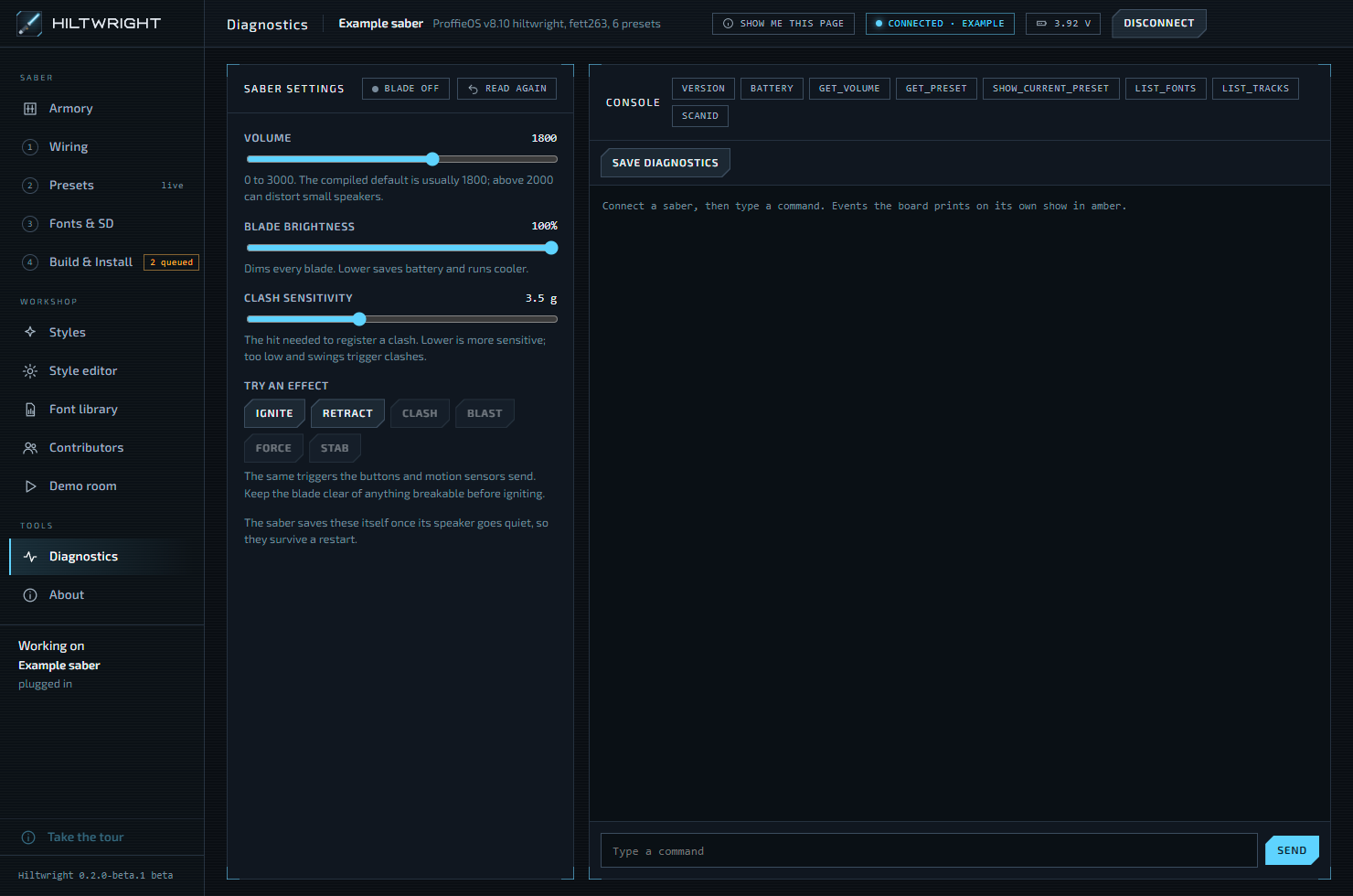
The Diagnostics page is a workbench for a plugged-in saber. It has settings you can change live, buttons that set off effects, a console that talks to the board, and the Save diagnostics button you use when something goes wrong. It is under Tools in the sidebar, next to About.
#Saber settings
With a saber plugged in, the Saber settings panel reads three values from the board and lets you change them. Each is read back after a change, so the number you see is the one the saber holds.
- Volume runs from 0 to 3000. The compiled default is usually 1800, and above 2000 can distort small speakers.
- Blade brightness dims every blade, shown as a percentage. Lower saves battery and runs cooler.
- Clash sensitivity is the hit needed to register a clash, in g. Lower is more sensitive. Too low and swings trigger clashes.
A control that the firmware rejects stays hidden. If none work, the panel says "This firmware does not answer the settings commands. Hiltwright firmware does." Without a saber it says "Connect a saber to change its settings."
The saber saves these settings itself once its speaker goes quiet, so they survive a restart.
#Try an effect
Ignite, Retract, Clash, Blast, Force and Stab send the same triggers the buttons and motion sensors send. Clash, Blast, Force and Stab work only while the blade is lit. Keep the blade clear of anything breakable before igniting.
Note The saber keeps its settings, and plays its effects, from its SD card. While the card is shared with the computer, the sliders and effects are off and an amber note tells you to give the card back on Fonts & SD first.
#The console
The console shows what the board prints. Lines the board sends on its own show in amber. Type a command in the box ("Type a command") and press Send. The box is off until a saber is connected.
Across the top are quick buttons. Every one only reads from the saber: version, battery, get_volume, get_preset, show_current_preset, list_fonts, list_tracks and scanid.
#Commands that ask first
Some typed commands can do harm, so Hiltwright holds them and asks. It looks at the first word of each command, including every command in a line chained with a semicolon.
- Words that restart the board, such as
reboot,reset,restart,dfu,bootloaderorpoweroff, give this warning: "... restarts the saber. The connection will drop, and any change that was not saved is lost." - Words that remove, overwrite or reformat files on the card, such as
del,rm,format,mv,rename,cp,copyorwrite, give this one: "... can delete or overwrite files on the saber's SD card, and there is no undo."
You then see an amber question, "Send ... anyway?", with Send it and Do not send. Everything else is sent straight away. The list leans toward asking, so a harmless command may sometimes be held too.
#The voice pack check
Some props, such as the Fett263 button controls, speak their menus from a voice pack kept in the common folder on the saber's card. Hiltwright checks for it by asking the saber over the same serial link as the console. It reads common/voicepack.ini and lists the folder. You do not need a card reader.
The result shows on the Build & Install page. It says one of:
- "Voice pack version ... found on the card. Fett263 button controls will speak their menus."
- "No voice pack found in the common folder." with what to put there.
- That the card has an older version than the firmware needs.
- That a preset does not use the
commonfolder, so the saber will say "voice pack not found" on it. Turn on Also use common sounds for that preset on the Presets page. - "Hiltwright could not check the voice pack on this card", with the reason. That does not mean it is missing.
The check is skipped while the card is shared with the computer.
#Save diagnostics
If something goes wrong, press Save diagnostics. The same button appears on the fault screen and beside a failed build or install on Build & Install.
It writes one plain text file on this computer, then opens the folder with the file selected. The page tells you: "Saved ... Its folder is open; you can read the file before sending it." It sends nothing anywhere. You attach it to your report yourself.
The file is named hiltwright-diagnostics- followed by the date and time. Hiltwright keeps the latest ten. It is kept small, and the oldest log lines are cut first if it grows.
#What is in it
- About: the Hiltwright version, whether it is a packaged build, the Windows version, and the Electron and Chromium versions.
- Toolchain: whether the compiler setup is installed and what it found.
- USB: what USB boards the computer can see, and the bootloader driver state.
- Connection: whether the saber is connected, any error, and the port.
- Saber: the saber record you are working on.
- Last build in this run: whether it passed, how long it took, how much flash it used, and any warnings or problems.
- Log: the log of this run, and the end of the previous run's log.
#What is left out
Your style code, the generated configuration, fonts, hilt models and backups are never included. Personal details are replaced before the file is written. Your user folder becomes %USERPROFILE%, your Windows user name becomes <user>, and your computer's name becomes <computer>.
Open the file and read it before you attach it. To report a problem, go to github.com/safwyls/hiltwright/issues, say what happened and which step you were on, and attach the file. See also Troubleshooting.
#About
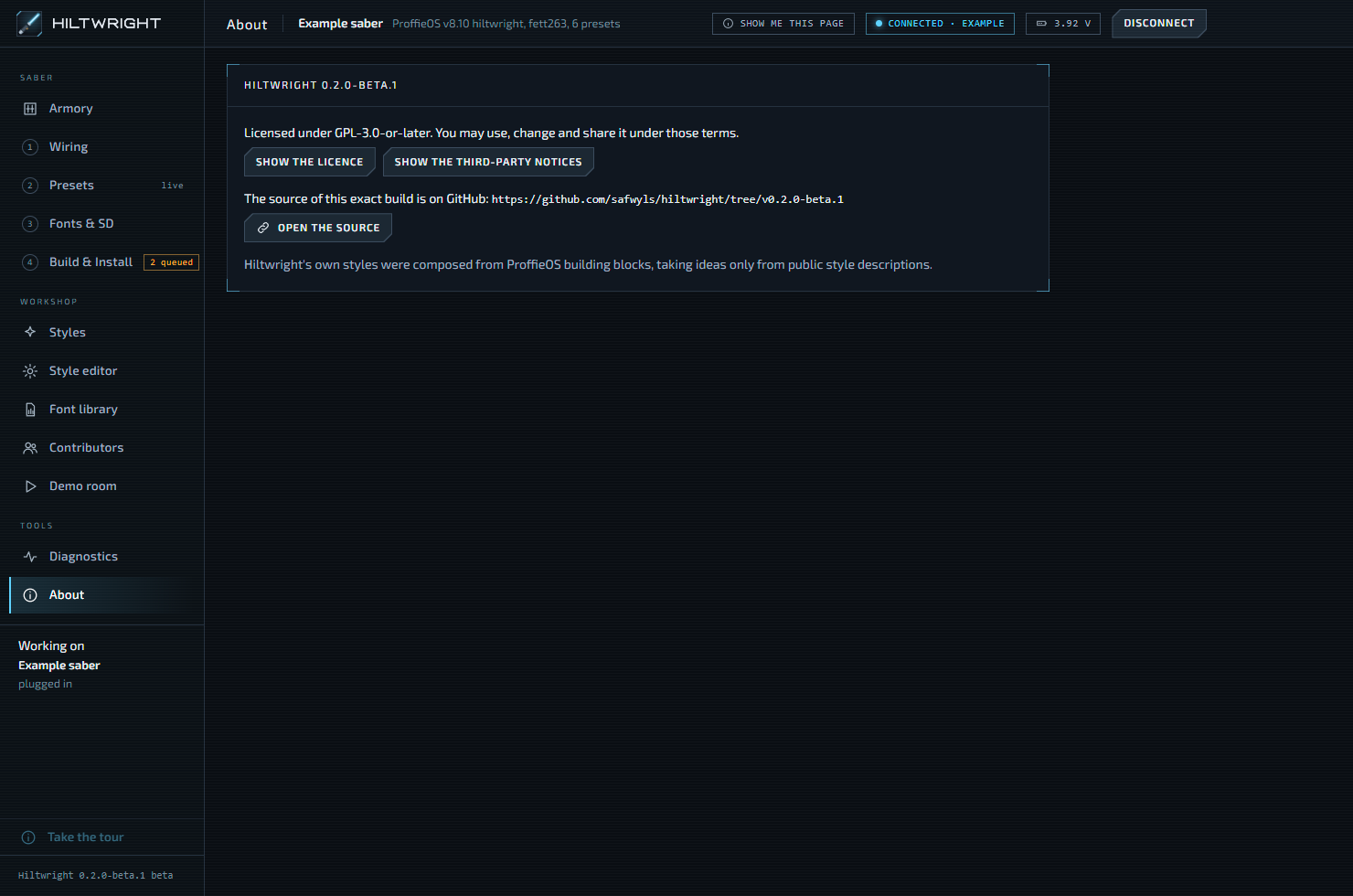
The About page, under Tools, shows the version you are running and the licence: GPL-3.0-or-later. It has Show the licence and Show the third-party notices buttons, and Open the source, which opens the source code of this exact build on GitHub. It also says that Hiltwright's own styles were composed from ProffieOS building blocks, taking ideas only from public style descriptions.
#Updates
Versions from 0.2.0-beta.3 on have a working Updates panel on the About page. 0.2.0-beta.1 has none, and the one in 0.2.0-beta.2 cannot check: install a newer beta by hand once, over either.
- Check for updates when Hiltwright starts is on unless you turn it off. Hiltwright then asks GitHub for its list of releases a little after it starts, and every few hours while it is open. The check sends nothing about your sabers or you; GitHub sees your internet address, as with any web page. A check that fails by itself says nothing, and being offline is not an error.
- Check now checks at once, whether the setting is on or off, and says what it found: "You have the latest version", or "Could not check:" and why.
- When a newer version is out, the panel says "Version ... is available", and a small chip under the version in the sidebar says so too. Nothing is downloaded until you press Download version .... The panel shows how far the download has got.
- Restart to update closes Hiltwright, runs the installer and opens Hiltwright again. Your sabers, styles and fonts are kept. It waits while a build, a firmware install, a Put back, a copy to the card or card sharing is running, and says what to wait for. Quitting Hiltwright never installs an update by itself.
Nothing about updates shows or runs during the guided tour.
Written for Hiltwright 0.2.0-beta.3. Something wrong or missing? Tell us.