

Docs / The workshop
Font library
Keep your sound fonts in one place on this computer, check them, hear them, and copy them to a saber's SD card.
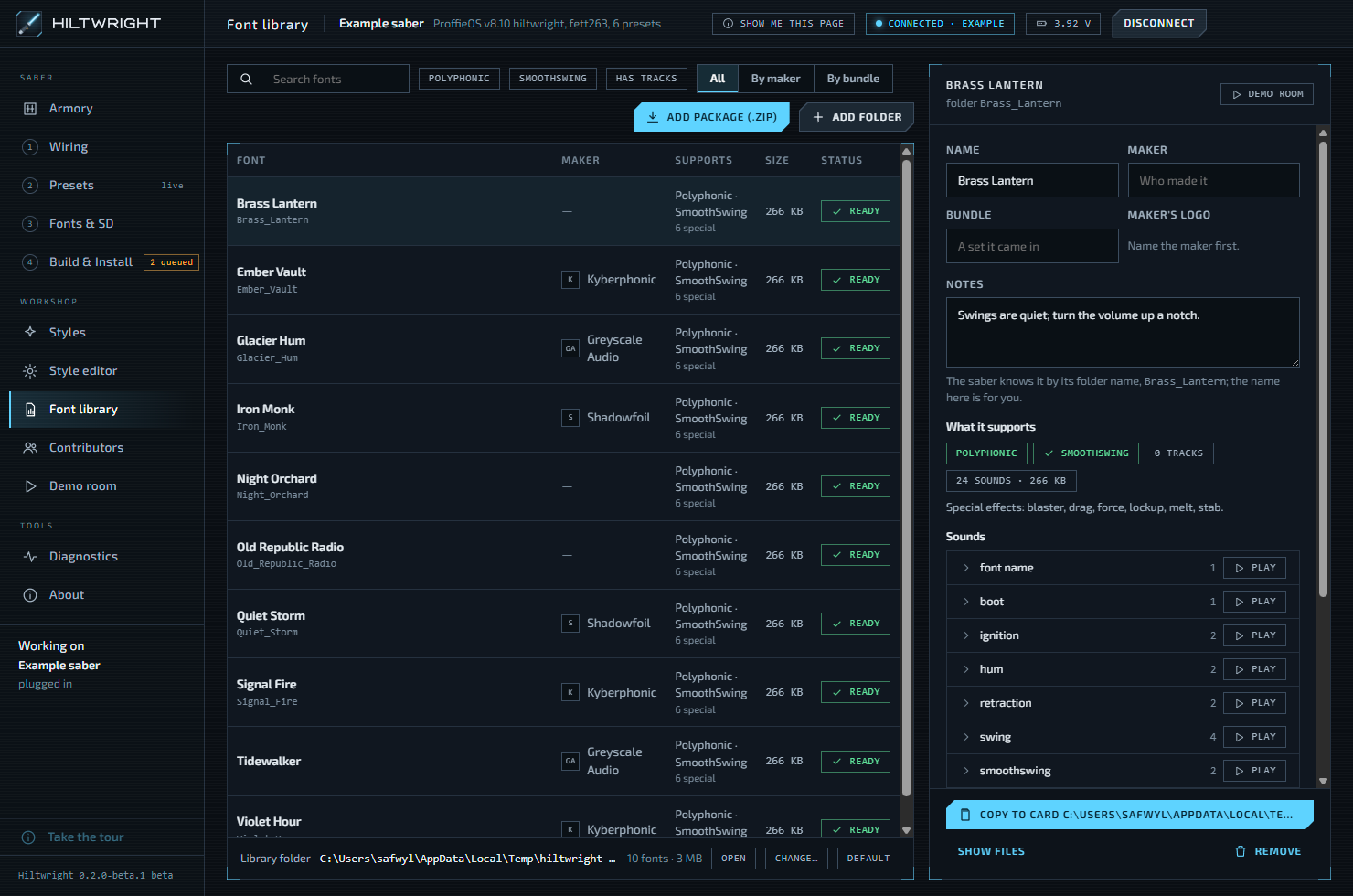
A sound font is the set of sounds a saber plays: hum, ignition, retraction, swings, clashes and so on. The Font library keeps your fonts in one folder on this computer. Once a font is added here you can name it in a preset, hear it in the Demo room, and copy it to a card, all without hunting for the files again.
#Adding fonts
There are two buttons at the top right.
- Add package (.zip) takes a font package as you downloaded it. If the package holds fonts for other boards too, the ones for other boards are left out. Hiltwright lists them as not added, with the reason "the copy in ... is for another board, not Proffie".
- Add folder takes one font folder, or a folder that holds several fonts.
The fonts are copied in. Your originals are left alone. When it finishes, a green note says "Added ..." and tells you to give each font a name and maker on the right. If some could not be added, an amber note says which and why.
With no fonts yet, the table says: "No fonts yet. Add a font package as you downloaded it (.zip), or a font folder. They are copied into the library; your originals are left alone."
#The font list
Each row shows the font's name, its maker with a logo, what it supports, its size and its status. Use Search fonts to find one. The filter buttons Polyphonic, SmoothSwing and Has tracks narrow the list. All, By maker and By bundle group it. A bundle is a set of fonts a maker released together. In a group heading, Set maker for all gives every font in the bundle the same maker.
#What "supports" means
Hiltwright reads this from the font's files:
- Polyphonic fonts use numbered names such as
clsh01.wav, and sounds can overlap. Monophonic fonts use names such asclash1.wavand play one sound at a time. Mixed means both forms appear, which is a fault. - SmoothSwing is the smooth, pitch-following swing sound. Hiltwright shows whether the font has the files for it.
- Tracks are music files kept with the font.
- Any special effects the font includes are listed.
#The status column
A font that passes shows a green Ready. Otherwise you see the number of issues, in amber, or red when the problem is serious. Open the font to read each one. The checks are:
- Both forms of an effect are present, for example
clash1.wavandclsh01.wav. ProffieOS plays only one form, so some sounds will be silent. This is red. - No hum. "Every font needs at least hum.wav or hum01.wav." This is red.
- Files above 44.1 kHz. "The saber needs 44.1 kHz or lower."
- Stereo files. "Fonts should be mono."
- Files that are not 16-bit, or not plain PCM.
#One font up close
Pick a row and the panel on the right opens.
- Name, Maker, Bundle and Notes are for you. The saber knows the font only by its folder name, which is shown under the title. Changes save when you click away.
- Maker's logo lets you add a logo for the maker. A logo and link appear wherever that maker is credited. See Contributors.
- What it supports repeats the chips above, with the number of sounds and the size.
- Sounds lists each effect with a count. Play plays one of that effect's sounds at random, as the saber would pick. Open an effect to play any sound by name. Stop ends it.
- Tracks lists music files with their lengths. A preset names a track as the font's folder plus the file path, and the panel shows the exact name.
#Using a font
At the foot of the panel:
- Demo room opens the font in the Demo room, so you can hear it on a blade.
- Copy to card copies the font's folder onto the saber's SD card. The button shows the card's drive. If the font is already there, it reads Replace on card, and asks "Really replace" before it does. If no card is found, the button says No card. With more than one card in, it says Choose the card on Fonts & SD. See Fonts and SD for sharing the saber's card over USB.
- Show files opens the font's folder.
- Remove moves the font's folder to the recycle bin.
Warning A saber can only read cards formatted FAT32 (or FAT16 or FAT12). If the card is exFAT or NTFS, Hiltwright asks "Copy ... anyway?" and says the saber will not see the font until the card is formatted as FAT32. Hiltwright does not format cards in this beta.
#Where the library lives
The bar at the bottom shows the Library folder, the number of fonts and their total size.
- Open shows the folder in Windows.
- Change... moves the library to another folder, for instance a larger drive. Default goes back to the original folder. Fonts left in the old folder stay there.
If the library is on a drive that is not plugged in, a red note says "The font library folder cannot be found" and offers Look again, Choose where it is and Use the default folder. Nothing is created in its place.
If the file holding your names, makers and notes cannot be read, an amber note says it was kept under another name, and that Hiltwright started from a backup copy or with what it could read. Open the folder takes you to it.
#Fonts that come with Hiltwright
Six free ProffieOS fonts come with the app: TeensySF, SmthJedi, SmthGrey, SmthFuzz, RgueCmdr and TthCrstl. They can be copied to a card from Fonts and SD, and played in the Demo room.
Written for Hiltwright 0.2.0-beta.3. Something wrong or missing? Tell us.