
Docs / The workshop
Style editor
Build your own style from plain blocks, or edit every ProffieOS layer, and watch it on a live blade before you save it.
The Style editor is where you make a style of your own. It has two ways to work, Simple and Full, and a live blade beside it so you can see each change as you make it. You reach it from Build a style on the Styles page, or from Edit the layers on a style you built.
#Simple or Full
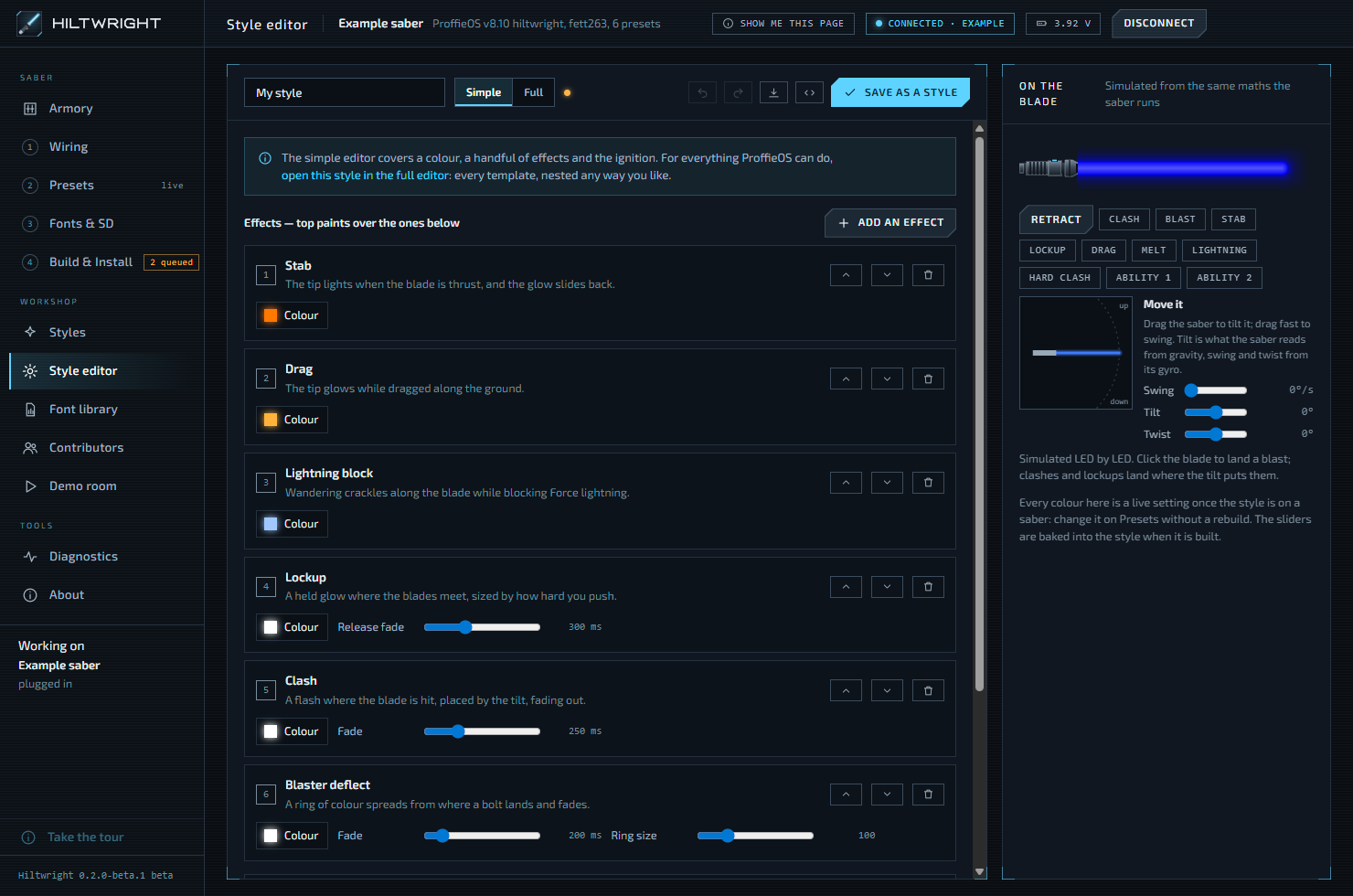
Use the Simple and Full tabs at the top, beside the style's name.
- Simple builds a style from a few plain blocks. It covers a colour, a handful of effects and the ignition. It is the quickest way to a good result.
- Full shows every ProffieOS layer, nested however you like. It reaches everything the official ProffieOS style editor does.
You can open a Simple style in Full at any time: press open this style in the full editor. The copy in Full starts from what the Simple style makes. The two halves are kept separately, so changes in one are not copied back to the other.
#Simple: blocks
A Simple style is a stack, read from the bottom up.
- Blade is what the blade does by itself, underneath everything. Choose Steady, Pulsing, Humming, Unstable, Fire, Energy flow, Two-tone, Rainbow, Lava lamp or Horizon. Each has its own colours and sliders.
- Effects sit on top. The top one paints over the ones below, as in an image editor's layers. Press Add an effect to choose from Blaster deflect, Clash, Lockup, Drag, Lightning block, Stab, Swing flare, Emitter flare, Stardust, Core pulse and Hot tip. The arrows move an effect up or down the stack and the bin removes it.
- Ignition is how the blade comes on: Wipe, Spark tip, From the middle, Fade or Instant. Retraction is how it goes out, with the same choices.
Every colour in a Simple style is a live setting once the style is on a saber. You can change it on Presets without a rebuild. The sliders are fixed into the style when it is built. If two colours share one live setting, an amber note names them.
Note Ignition and retraction times are live settings on the saber (300 and 500 ms unless you change them on Presets), so they are not set in the editor.
#Full: every layer
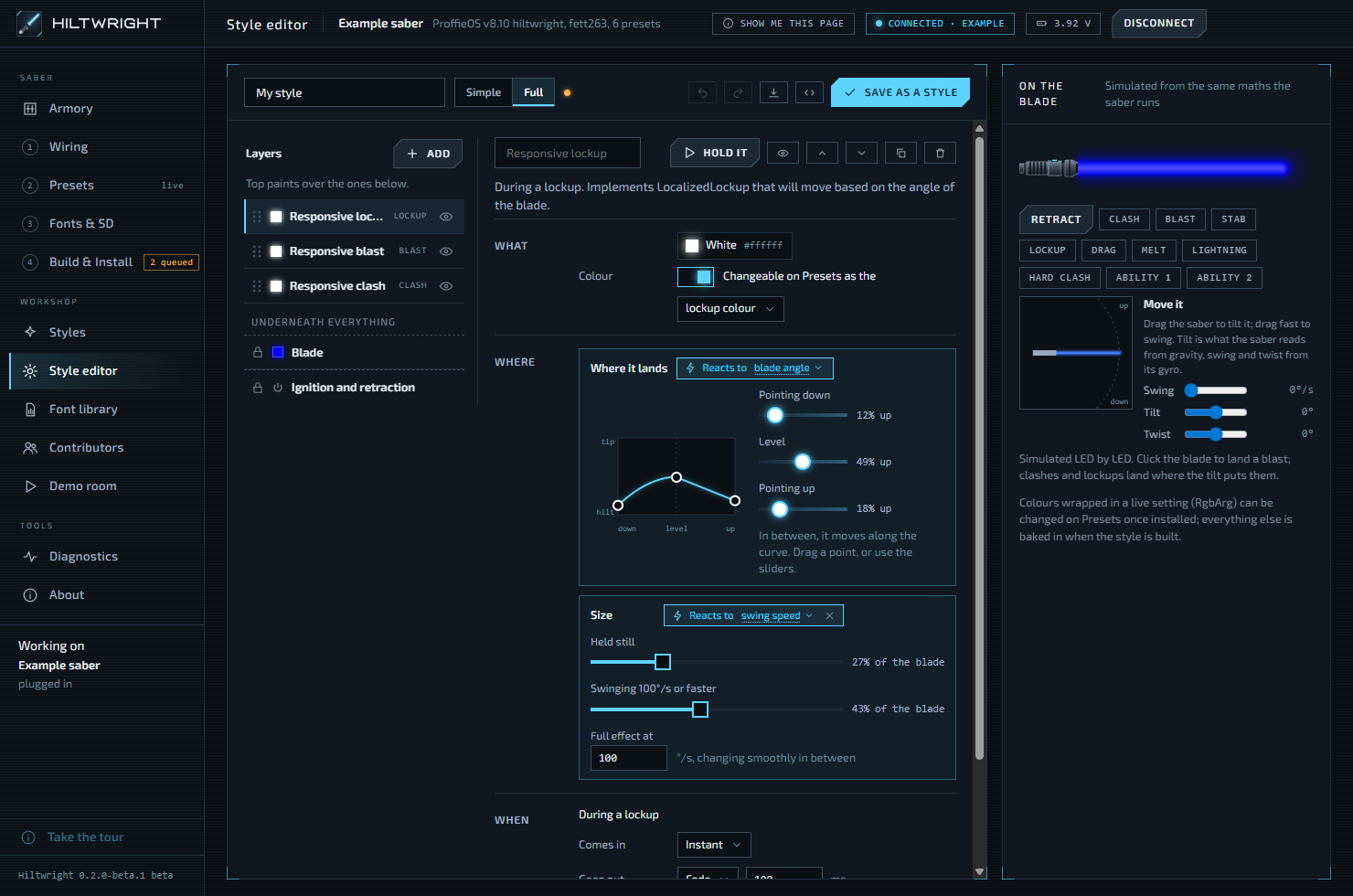
On the left is the list of layers, with Add at the top and the reminder "Top paints over the ones below." The bottom layer is the blade itself, and the ignition and retraction layer stays pinned at the top. Those two cannot be moved, hidden or removed.
Add opens a search box, "Search every ProffieOS template", with ready-made recipes and every layer the program knows about, each with a short description.
#What, Where and When
Pick a layer and its card says in a sentence what it does. Most cards are split into three parts:
- What is the colour or pattern the layer paints. You can use a plain colour or choose a pattern. A switch, Changeable on Presets without a rebuild, makes the colour a live setting, and a list lets you pick which one (base colour, clash colour, lockup colour and so on).
- Where is the part of the blade it covers: Whole blade, A spot, From the hilt or From the tip. A spot has a Position (0% is the hilt, 100% the tip) and a Width. From the hilt and from the tip have a reach and a Soft edge. Whole blade has a Strength: 100% is solid.
- When is when it shows: Always, On an effect or During a lockup. Choose which effect or lockup, and how it Comes in and Goes out.
Layers built from other templates show their own parts under What, Where, When or Settings. A layer Hiltwright has no card for is shown as a tree and kept exactly as written.
Each card has a name box, so you can label a layer in your own words. Buttons let you move the layer, duplicate it, remove it, or hide it in the preview. Hiding is only for looking: the layer is still saved and built. Show this layer's code reveals its ProffieOS code, and Edit as a tree shows its inner parts.
#Pasting a style
Paste a style accepts code from the official editor or a style library and opens it in Full. Say who made it, or tick Author unknown, then press Open it in the editor. The comment header and the author stay with it when you save, and it is saved as theirs, edited by you.
#The preview and cues
The panel on the right, On the blade, shows the style on a blade with a hilt. It uses the same simulator as the Styles page, with the same buttons for Ignite, Clash, Blast, lockups and the Swing, Tilt and Twist controls.
In Full, a layer with a trigger shows a Trigger button, or Hold it for a lockup. It sets that effect off on the preview, so you can see the layer without hunting for the right button. Dragging a Where control poses the blade so the effect lands where you are pointing.
If the preview can show part of a style only roughly, a note says so: "The preview is only approximate for ..." A note in amber, starting "The preview cannot show ...", lists parts that are left out of the preview but kept in the style. Either way, that part may differ on the saber.
#Checks before saving
When you save a Full style, Hiltwright checks it first. It looks for names it does not know (and offers a close match, such as "Did you mean ...?"), parts of the wrong kind in a slot, and templates with too many or too few values. If it finds problems, nothing is saved. A red note says "Not saved: this style has a problem" (or a number of problems), lists each by layer, and adds "The build would probably stop on it."
Fix them and save again. If you know better, save it as it is saves anyway. Only a build can say for certain that the compiler accepts the whole style.
#Save as a style
Save as a style adds your work to your Styles, ready for any preset. After the first save the button reads Save changes. The status beside the tabs reads Not saved yet, Unsaved changes or Saved.
When it saves, a green note says it is in your Styles now. If sabers already have the old version in their plan, it says how many, and that a build is needed to reach the saber. There is a link to swing the style in the Demo room.
A few more things to know:
- Save writes the half you changed, Simple or Full. If you changed both, an amber note says which one is kept and that the other's changes are not.
- Undo and Redo buttons work for both. Ctrl+Z undoes. Ctrl+Y or Ctrl+Shift+Z redoes.
- Show the code shows the ProffieOS code your style compiles to, with a Copy the style button.
- Leaving with unsaved work asks "Save your style first?" with Stay, Leave without saving and Save and leave. Undo cannot bring changes back once you leave the page.
- A style needs a name before it can be saved.
Written for Hiltwright 0.2.0-beta.3. Something wrong or missing? Tell us.